

- Onboard businesses (your tenants) onto the WhatsApp Business Platform
- Send and receive messages on behalf of your tenants
- Manage message templates and phone numbers through the WhatsApp Business API
Before you start
Make sure you have the following:Choose how to onboard
Meta offers two ways to become a Tech Provider. Both require App Review.Set up your Meta app
Create a Business Portfolio
Register as a Meta developer
Create a Meta app
- Select the Business app type.
- Choose your Business Portfolio when asked which portfolio to connect.
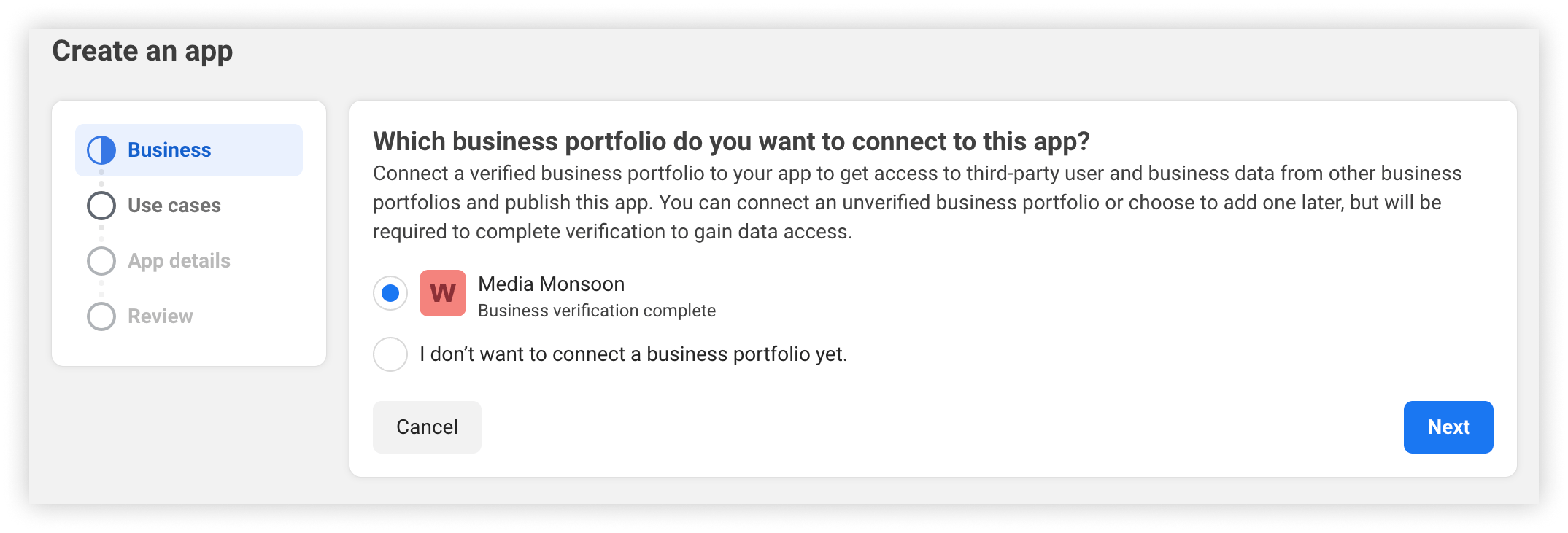
The Create an app dialog, asking which business portfolio to connect to the app
- Enter the app name and contact email, confirm the Business Portfolio, and click Create app.
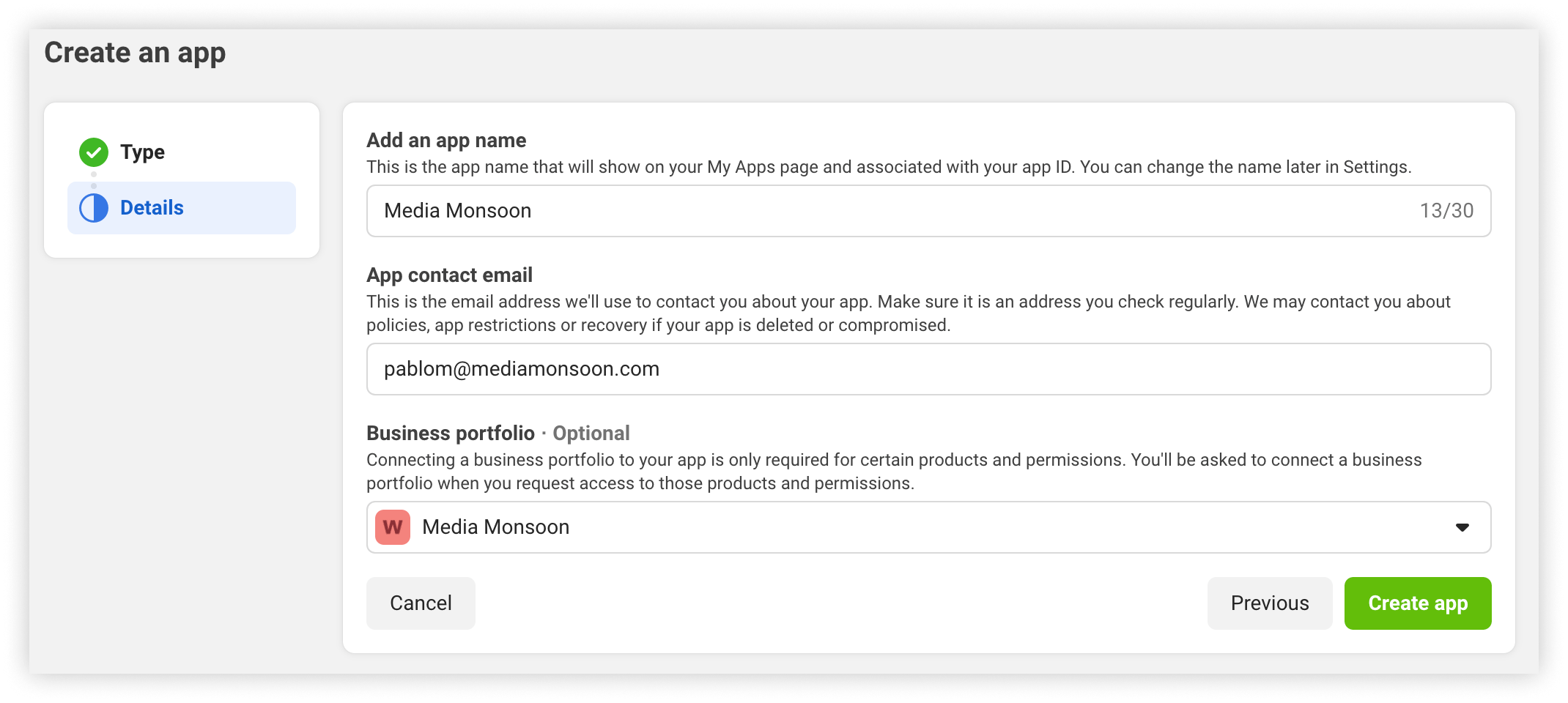
The Create an app details step, with the app name, contact email and business portfolio fields
Add basic app info
Add the WhatsApp product
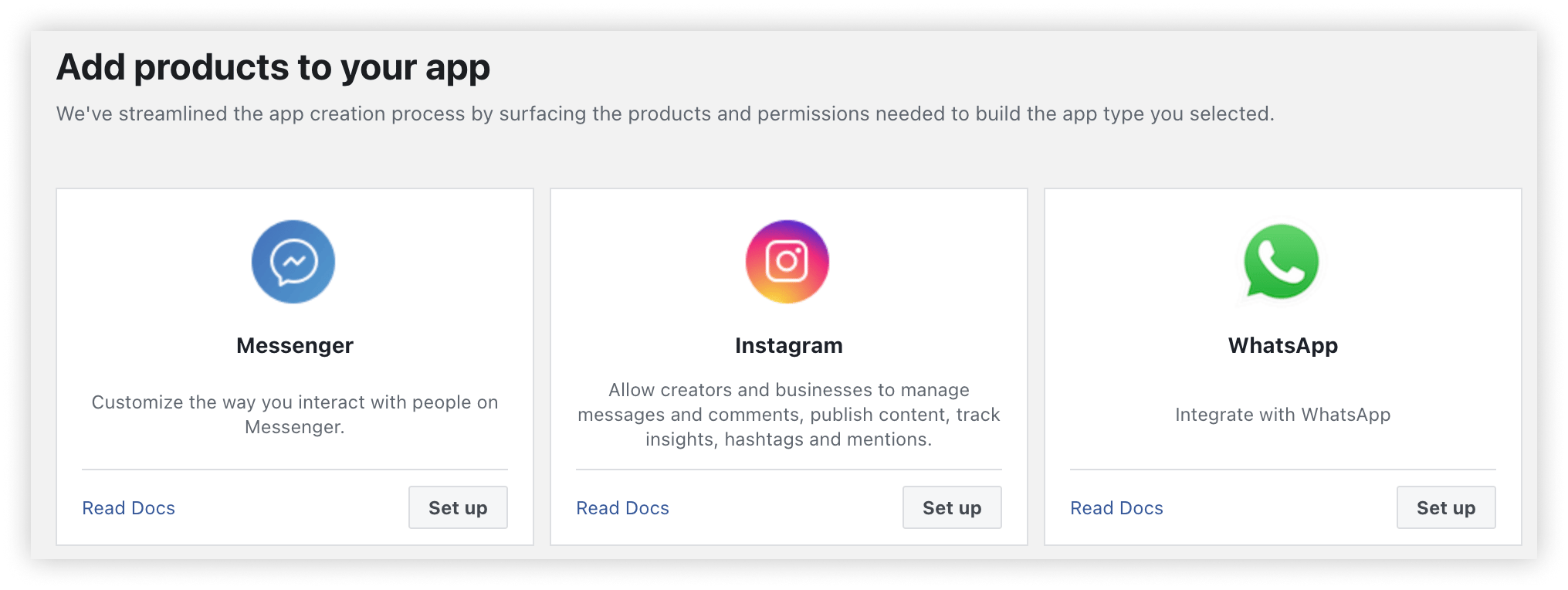
The Add products to your app screen, with the WhatsApp Set up button
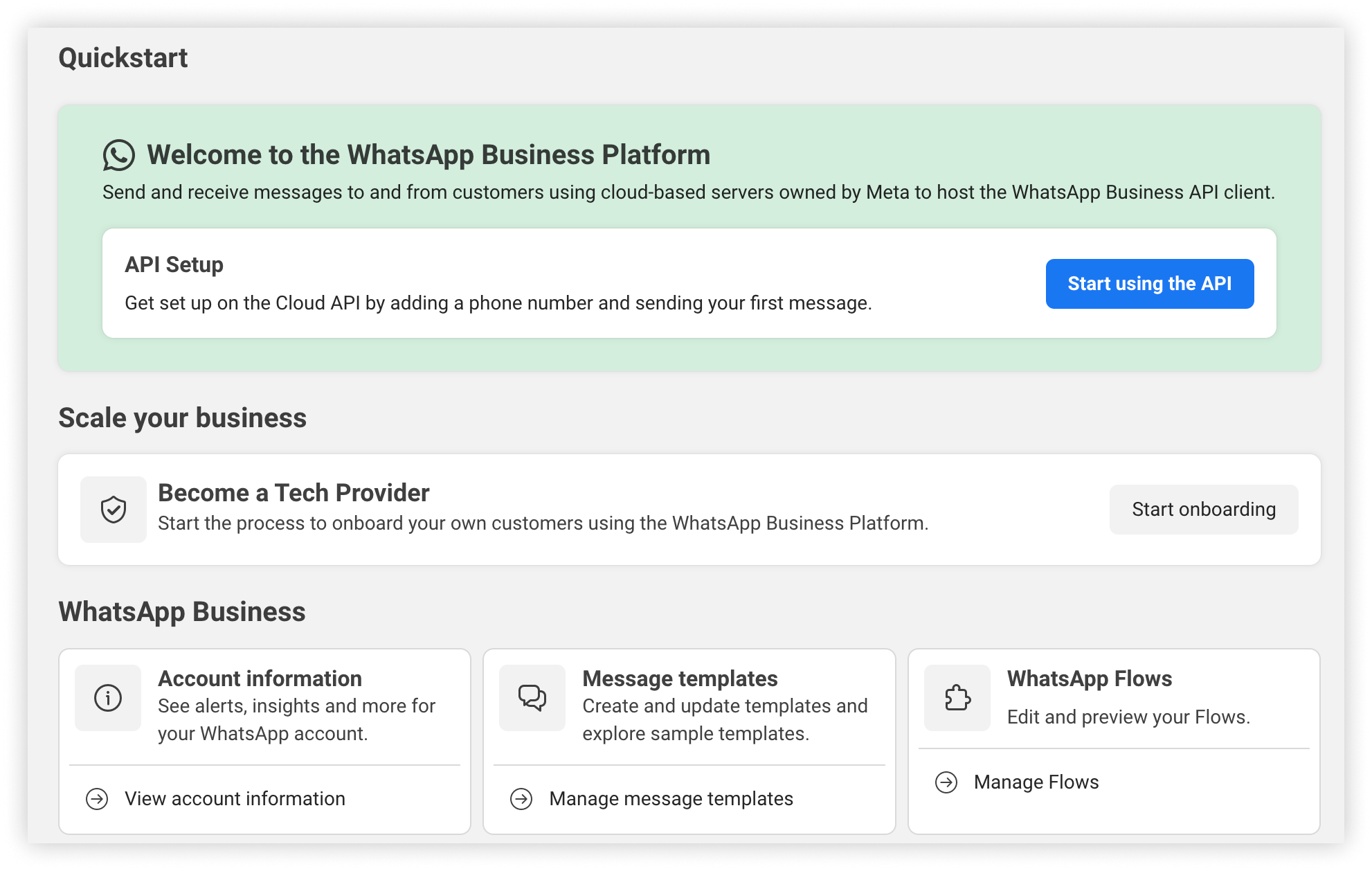
The WhatsApp Quickstart panel, with the Become a Tech Provider card under Scale your business
Start Tech Provider onboarding

The Become a Tech Provider card, with the Start onboarding button
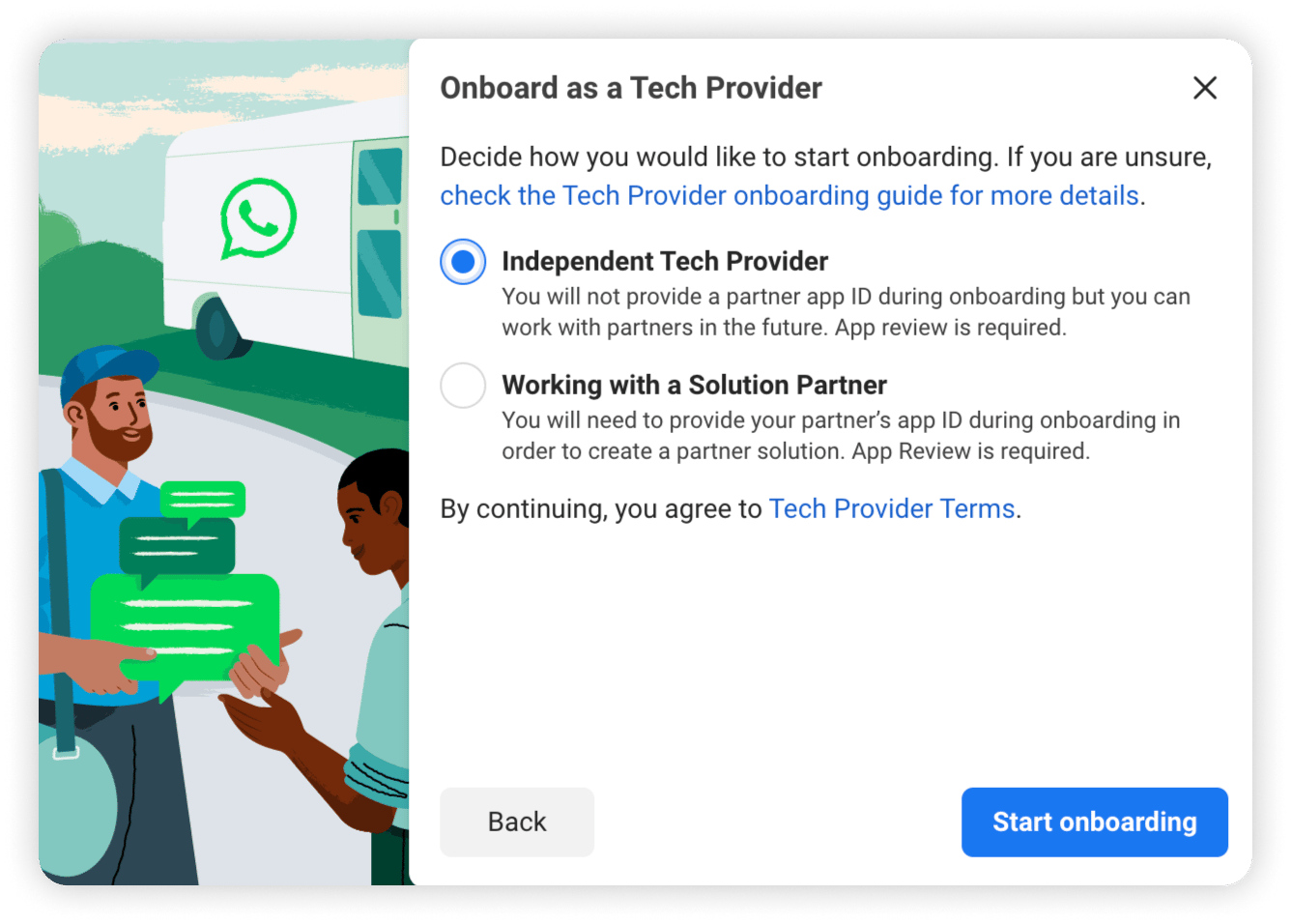
The Onboard as a Tech Provider dialog, with the Independent Tech Provider and Working with a Solution Partner options
Complete Tech Provider onboarding
Verify your business
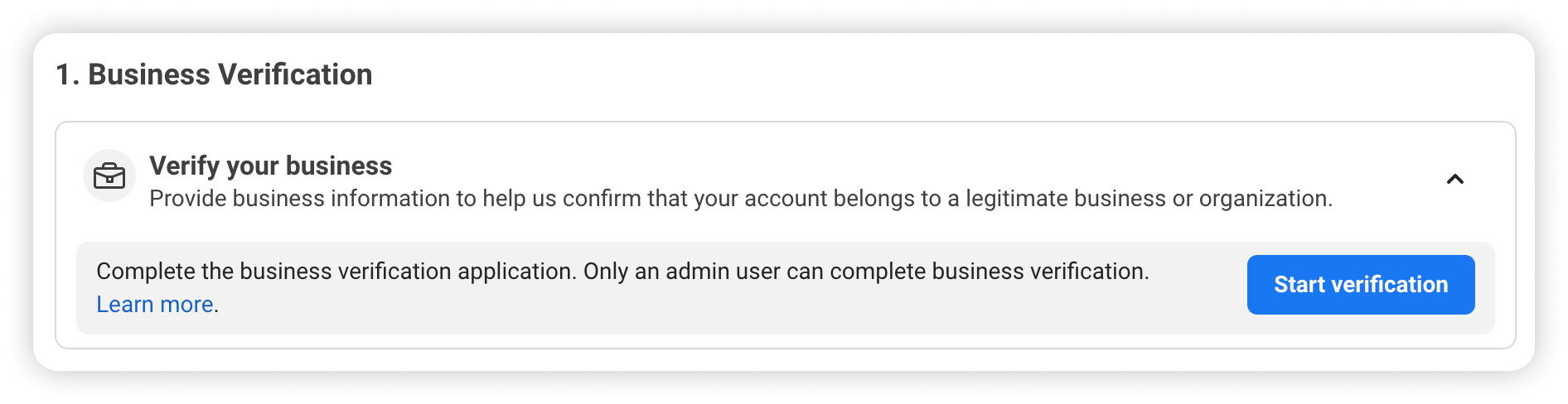
The Business Verification section, with the Start verification button
Create a partner solution
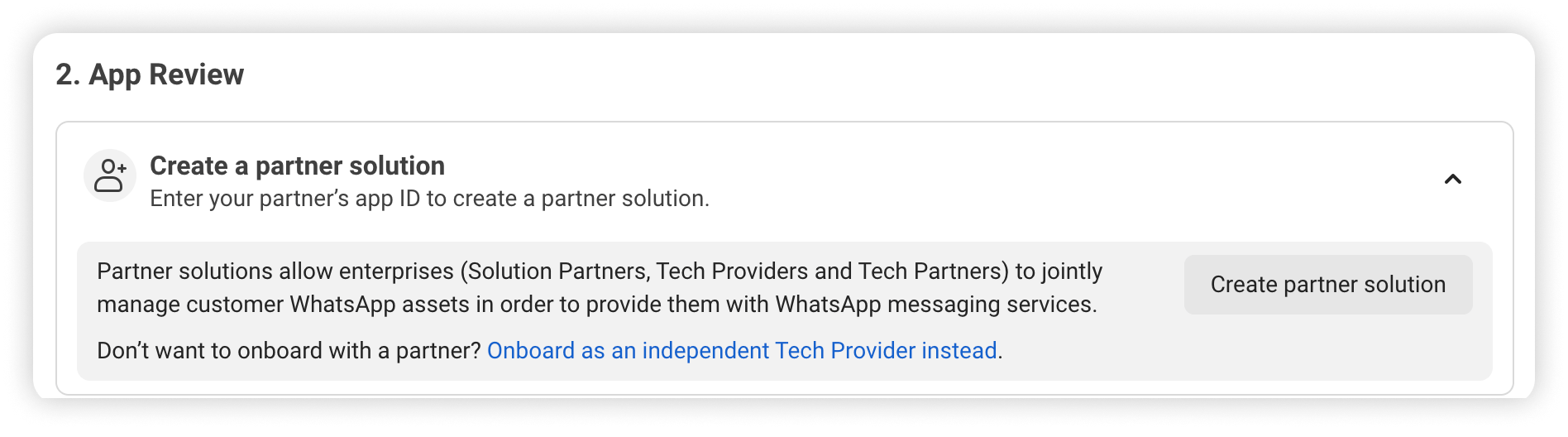
The Create a partner solution card in the App Review section
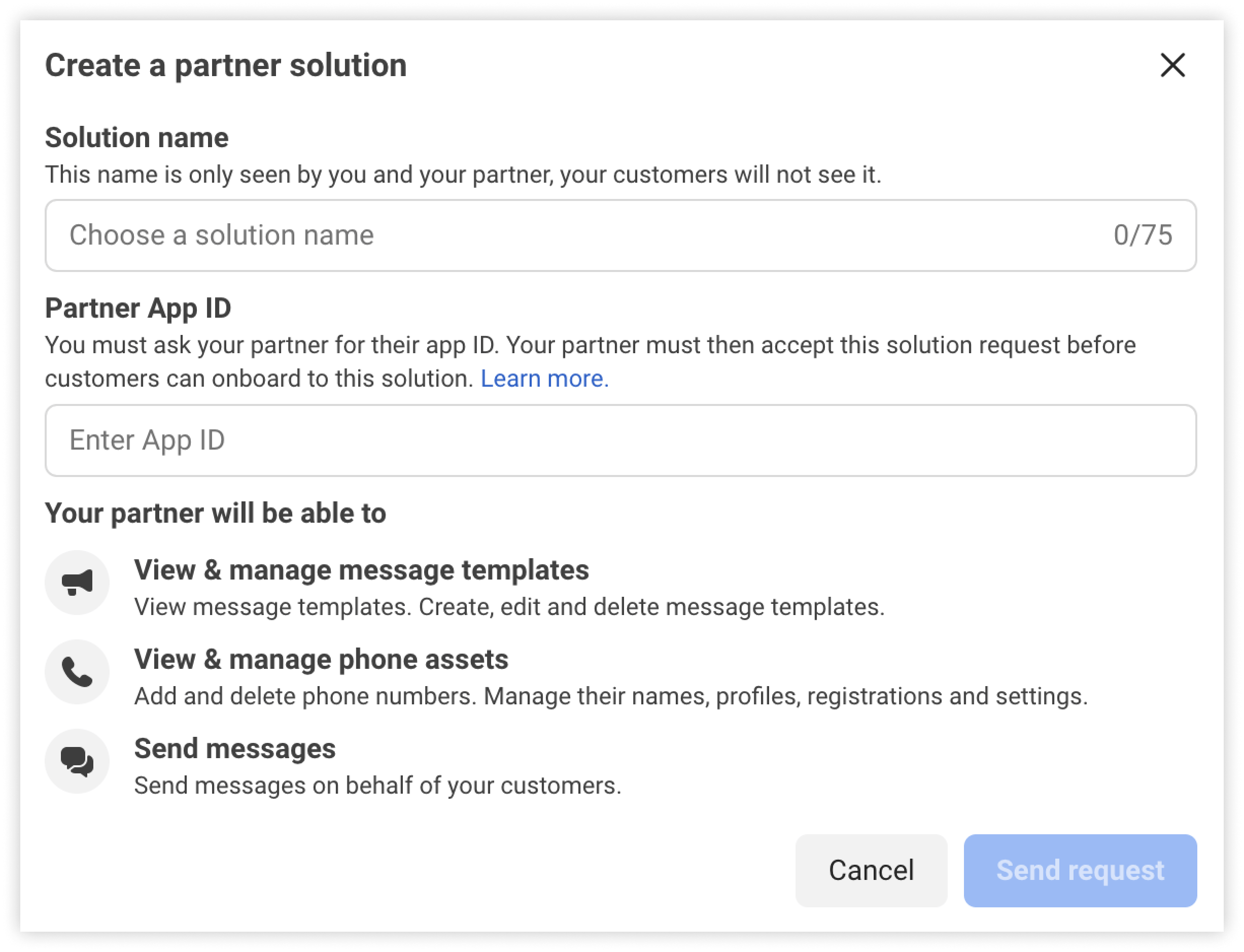
The Create a partner solution dialog, with the solution name and partner App ID fields
Review app settings
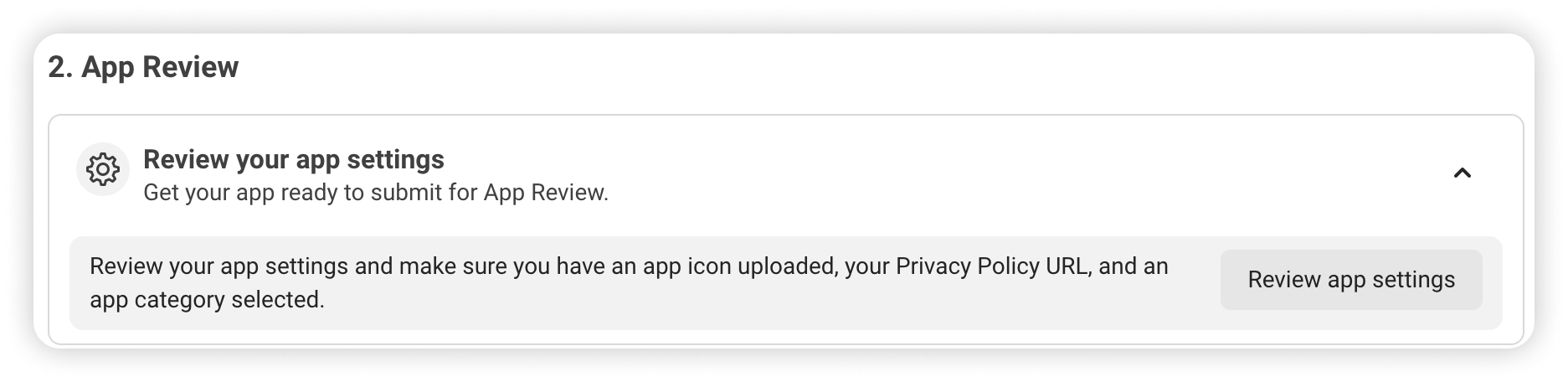
The Review your app settings card in the App Review section
Record videos for App Review
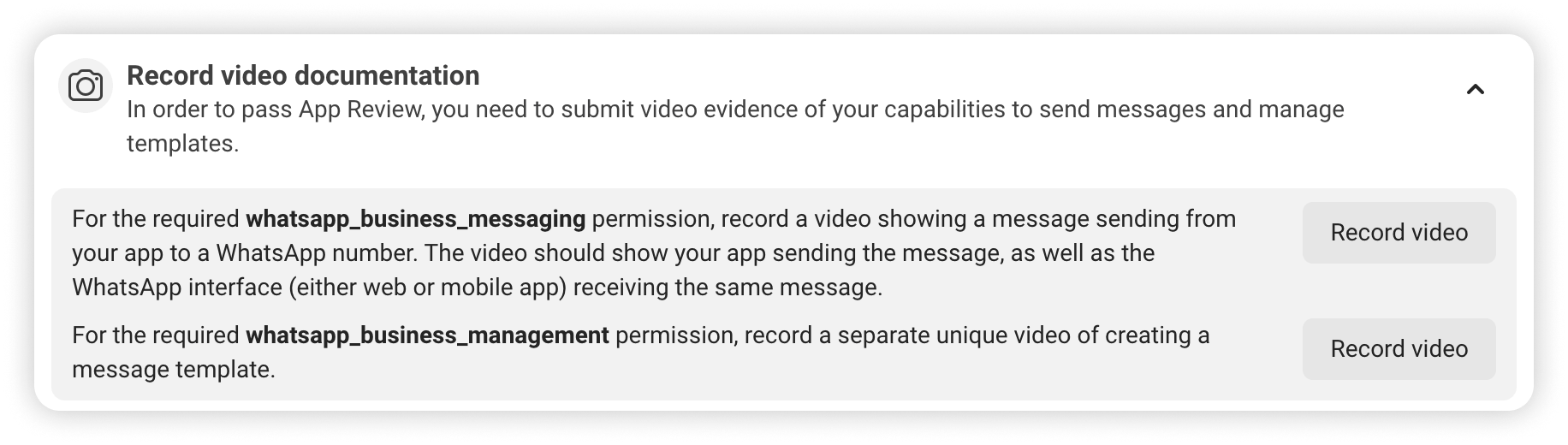
The Record video documentation card, listing the videos required for each permission
Submit for App Review
whatsapp_business_messaging and whatsapp_business_management as pending.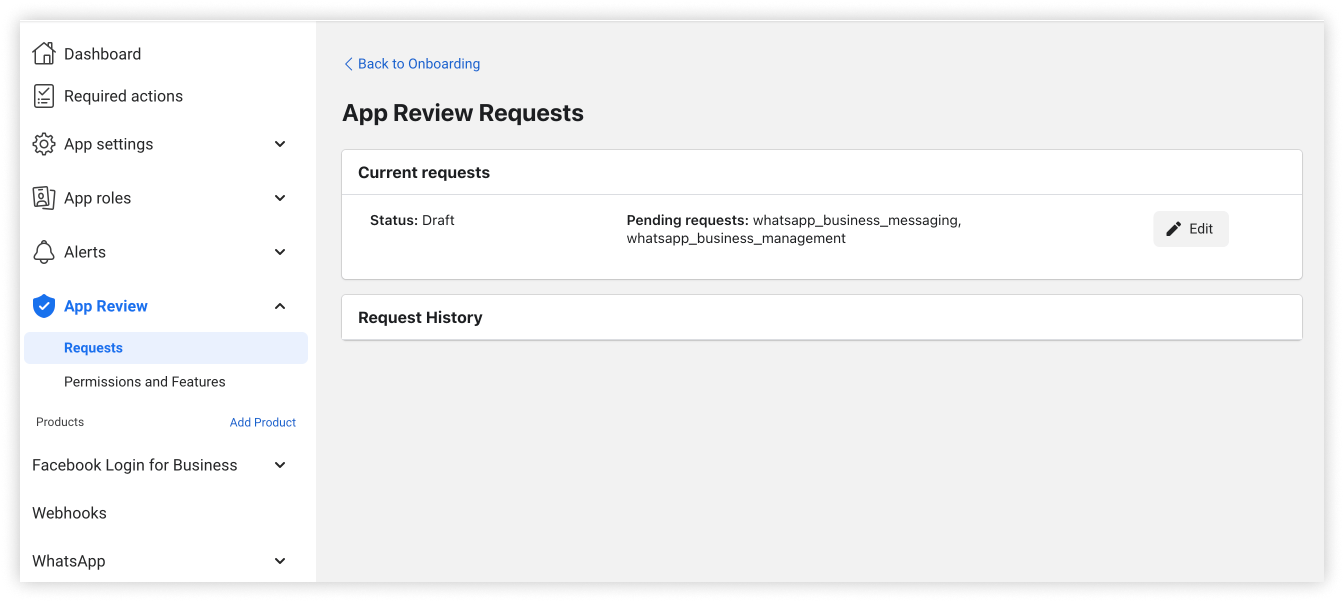
The App Review Requests page, with a draft request for the two WhatsApp permissions
- For each permission, explain how your platform uses it and attach the matching video from Step 10.
- In App verification details, confirm the Website platform and site URL, and describe how a reviewer can test your integration.
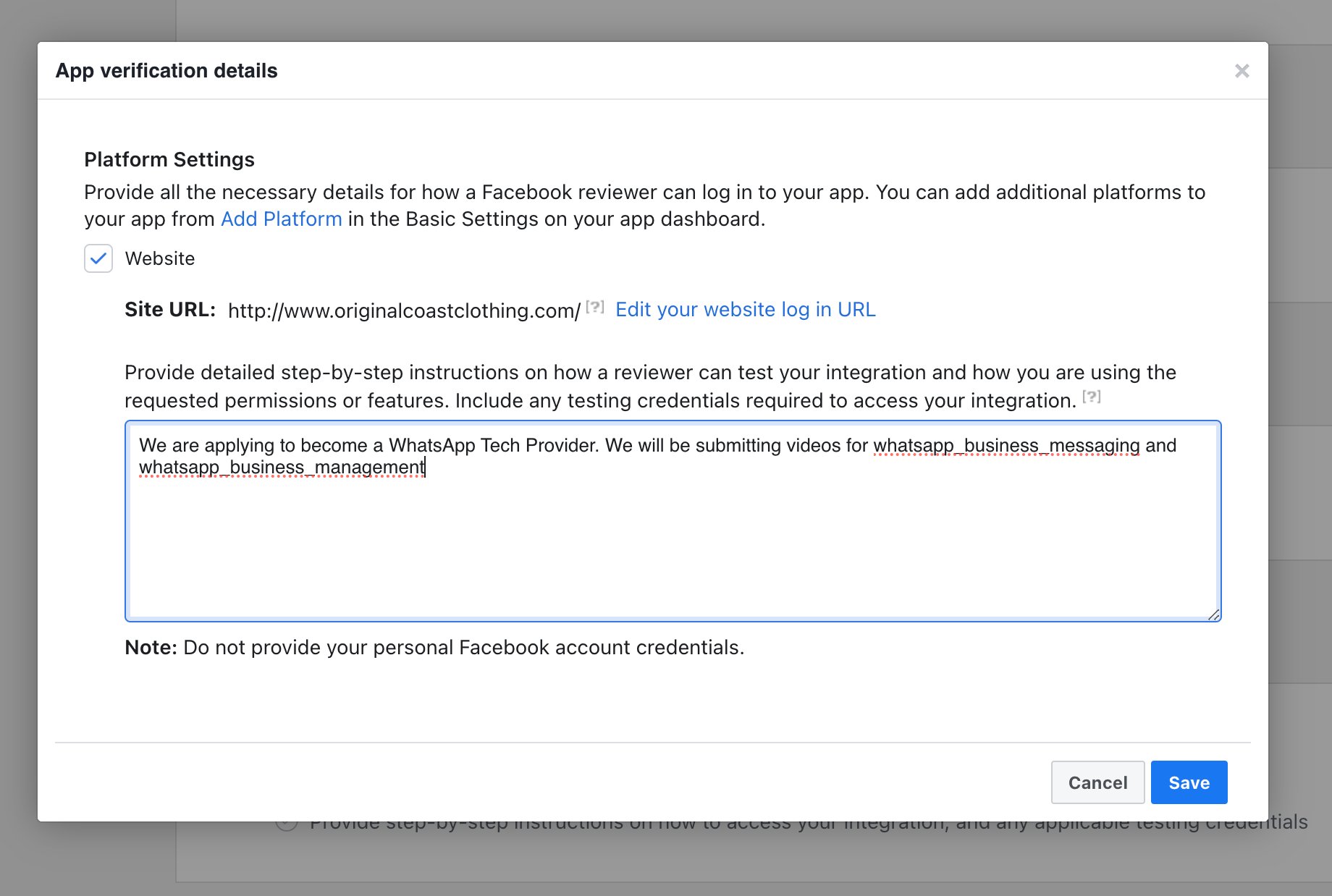
The App verification details dialog, with the Website platform and the reviewer instructions field
Complete access verification
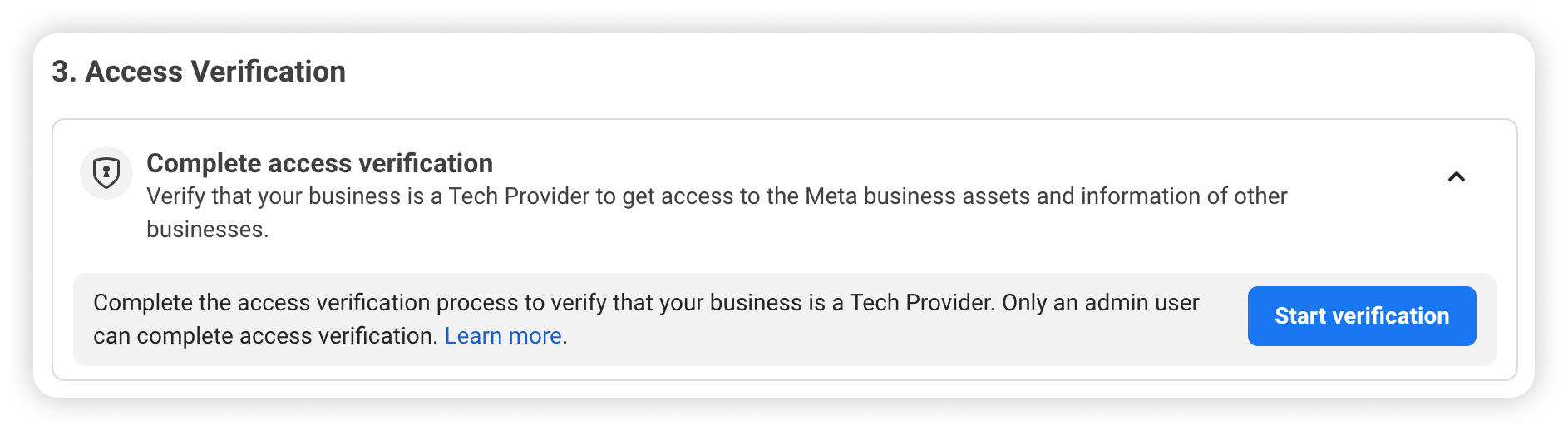
The Access Verification section, with the Start verification button
Confirm your status
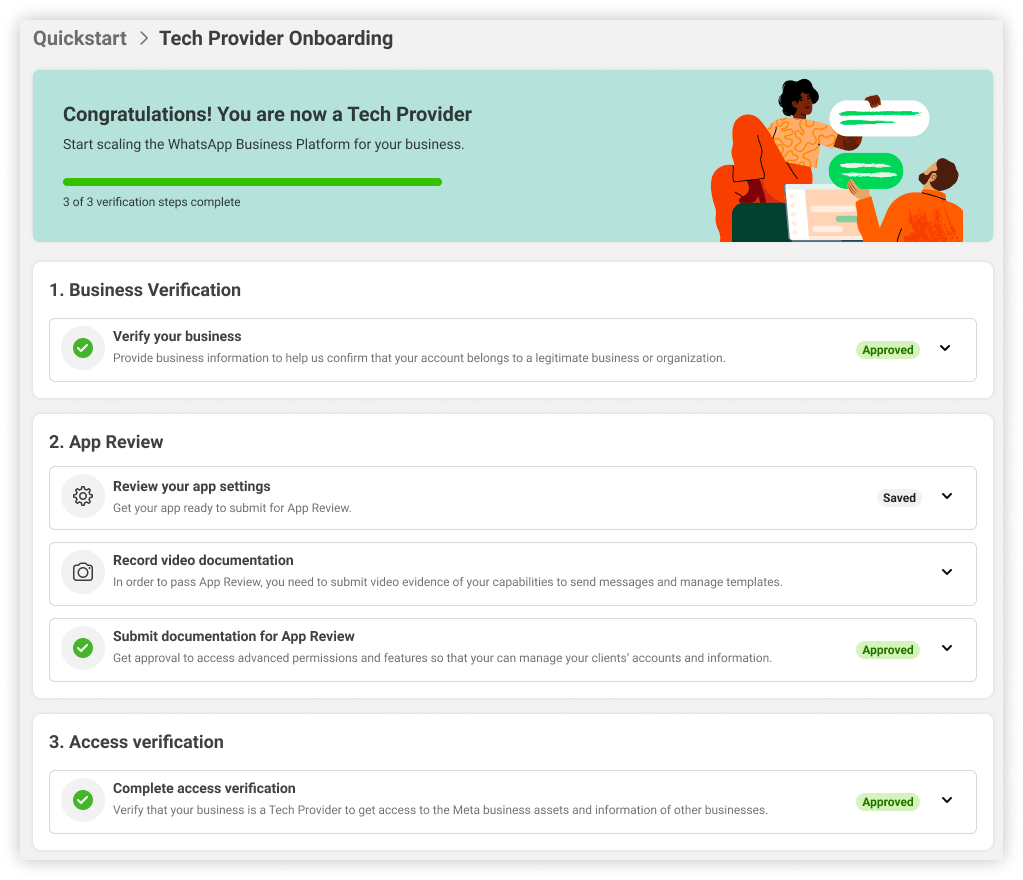
The Tech Provider Onboarding page, with all verification steps approved
After approval
Finish the app configuration that Embedded Signup relies on.Create the Facebook Login configuration
whatsapp_business_management and whatsapp_business_messaging permissions.Allow your domain
Enter your credentials
Connect the webhook
Turn on Embedded Signup