> ## Documentation Index
> Fetch the complete documentation index at: https://reseller-docs.wamatrix.io/llms.txt
> Use this file to discover all available pages before exploring further.
# Users & roles
> Add administrators and control their access to the admin panel.
**Setup → User** and **Setup → Role** allow you to manage your staff and their access to the admin panel.
These users are your **staff members**, not tenants or tenant staff.
## Access types
Administrators can access the panel in two ways.
| Access type | Description |
| ------------------------ | --------------------------------------------------------------- |
| **Role** | A set of specific permissions, limited to the areas you choose. |
| **Administrator Access** | Full, unrestricted access to all areas of the platform. |
Give **Administrator Access** only to trusted users. It provides unrestricted access and cannot be limited by a role.
## Roles
**Setup → Role** shows all available roles and the number of users assigned to each role.
### Create a role
Click **Add Role** and enter a **Role Name**, then select the required permissions.
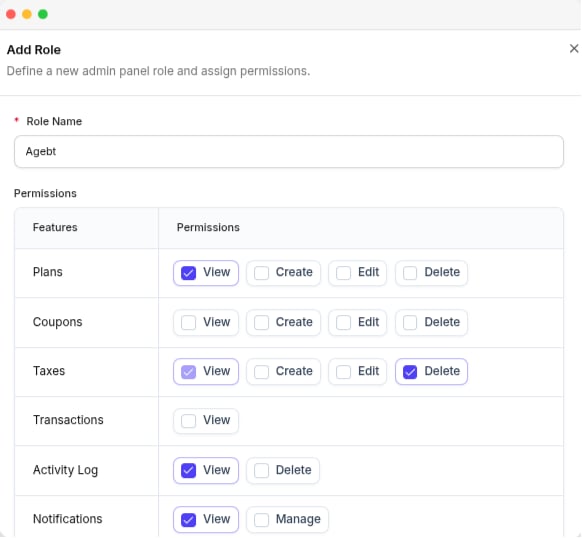 Permissions are available for areas such as **Plans, Coupons, Taxes, Transactions, Activity Log, Notifications, Tenants, Tenant Billing, Currency, My Billing, Email Templates, Seeder Library, Settings, Users, and Roles**.
Most areas include permissions such as **View, Create, Edit, and Delete**.
Selecting **Create, Edit, or Delete** automatically gives the user **View** access to that area.
### Delete a role
A role assigned to a user cannot be deleted. Move the users to another role first, then delete the unused role.
## Users
**Setup → User** shows all administrators with their name, phone, email, status, and added date.
### Add a user
Click **Add User** and enter the following details.
Permissions are available for areas such as **Plans, Coupons, Taxes, Transactions, Activity Log, Notifications, Tenants, Tenant Billing, Currency, My Billing, Email Templates, Seeder Library, Settings, Users, and Roles**.
Most areas include permissions such as **View, Create, Edit, and Delete**.
Selecting **Create, Edit, or Delete** automatically gives the user **View** access to that area.
### Delete a role
A role assigned to a user cannot be deleted. Move the users to another role first, then delete the unused role.
## Users
**Setup → User** shows all administrators with their name, phone, email, status, and added date.
### Add a user
Click **Add User** and enter the following details.
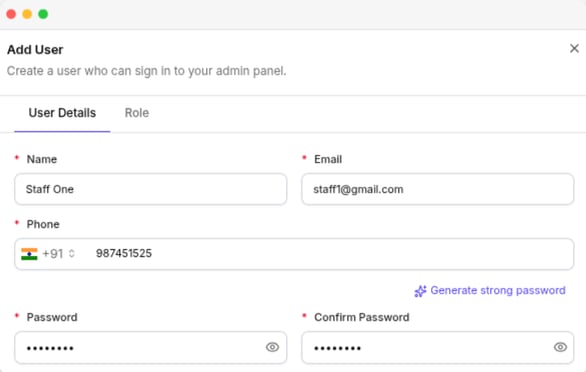 | Field | Description |
| ------------------------ | ---------------------------------- |
| **Name** | User's name. |
| **Email** | Email address used to sign in. |
| **Phone** | Optional phone number. |
| **Password** | Password for the account. |
| **Administrator Access** | Gives full access to the platform. |
| **Role** | Role assigned to the user. |
### Edit a user
You can edit a user's profile and access settings based on your permissions. The following rules apply:
* You cannot change your own access settings.
* The **account owner** cannot be edited from this page. Update the owner's details from **Profile**.
* Only a full-access administrator can manage users with **Administrator Access**.
You need full access to give someone full access. A staff member with a role cannot give it to anyone, including their own account.
### Remove a user
You can remove staff users from the platform. These users cannot be removed:
* **Account owner**
* **Your own account**
You can also disable a user without removing them by turning off their **Active** status.
| Field | Description |
| ------------------------ | ---------------------------------- |
| **Name** | User's name. |
| **Email** | Email address used to sign in. |
| **Phone** | Optional phone number. |
| **Password** | Password for the account. |
| **Administrator Access** | Gives full access to the platform. |
| **Role** | Role assigned to the user. |
### Edit a user
You can edit a user's profile and access settings based on your permissions. The following rules apply:
* You cannot change your own access settings.
* The **account owner** cannot be edited from this page. Update the owner's details from **Profile**.
* Only a full-access administrator can manage users with **Administrator Access**.
You need full access to give someone full access. A staff member with a role cannot give it to anyone, including their own account.
### Remove a user
You can remove staff users from the platform. These users cannot be removed:
* **Account owner**
* **Your own account**
You can also disable a user without removing them by turning off their **Active** status.