> ## Documentation Index
> Fetch the complete documentation index at: https://reseller-docs.wamatrix.io/llms.txt
> Use this file to discover all available pages before exploring further.
# Tech Provider Approval
> Get your Meta app approved as a WhatsApp Tech Provider so tenants can connect through Embedded Signup.
Tenants connect their WhatsApp Business Account through Meta's **Embedded Signup** flow, which runs on your Meta app. For that flow to work for the public, Meta must approve your business as a **Tech Provider** on the WhatsApp Business Platform.
Once approved, you can:
* Onboard businesses (your tenants) onto the WhatsApp Business Platform
* Send and receive messages on behalf of your tenants
* Manage message templates and phone numbers through the WhatsApp Business API
Until your app is approved, Embedded Signup only works for people who hold a role on the app (admins, developers, testers). Complete this guide before you enable **Embedded Signup** in [Settings → Channels](/pa/channels#whatsapp).
## Before you start
Make sure you have the following:
| Requirement | Details |
| --------------------------- | ----------------------------------------------------------------------------------------------------------------- |
| **Registered business** | A legally registered business entity in your country. |
| **Live domain** | The domain your platform runs on, with a public **Privacy Policy** page. |
| **Meta Business Portfolio** | Also called Business Manager. You need **admin** access to it. |
| **Business verification** | Company documents (registration certificate, utility bill, or similar) for Meta's business verification. |
| **Two screen recordings** | Short videos of sending a message and creating a message template. See **Step 10**, Record videos for App Review. |
## Choose how to onboard
Meta offers two ways to become a Tech Provider. Both require App Review.
| Option | When to choose it |
| ----------------------------------- | ------------------------------------------------------------------------------------------------- |
| **Independent Tech Provider** | You manage tenants yourself. **This is the usual choice for a reseller platform.** |
| **Working with a Solution Partner** | You partner with a Meta Solution Partner. You need their **App ID** to create a partner solution. |
## Set up your Meta app
Go to [Meta Business Suite](https://business.facebook.com) and sign in with your Facebook account. This creates a **Business Portfolio**, the container for your WhatsApp assets.
If you already have one, skip this step.
Go to [Meta for Developers](https://developers.facebook.com) and click **Get Started**. Complete the registration — this turns your account into a **Developer Account**.
Go to [Meta Apps](https://developers.facebook.com/apps) and click **Create App**.
* Select the **Business** app type.
* Choose your **Business Portfolio** when asked which portfolio to connect.
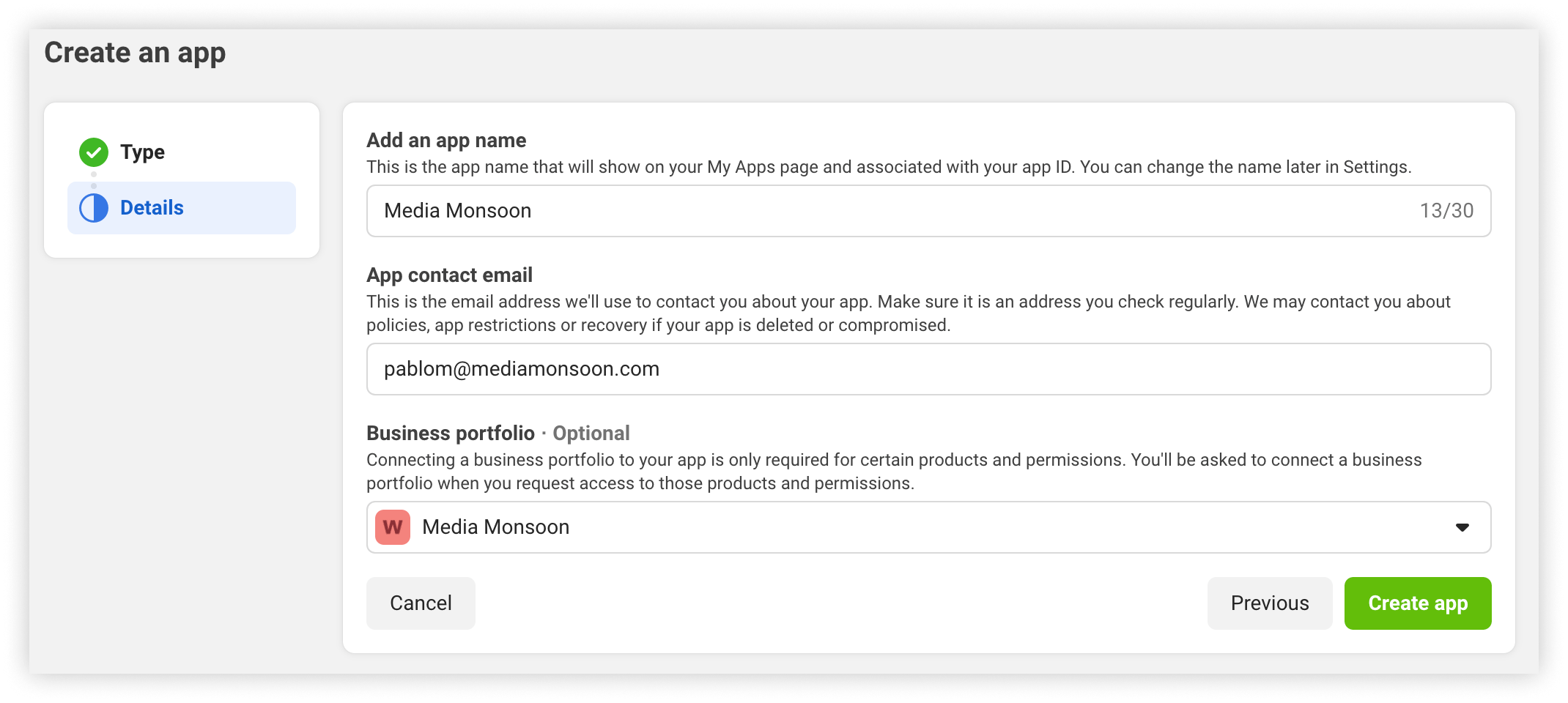
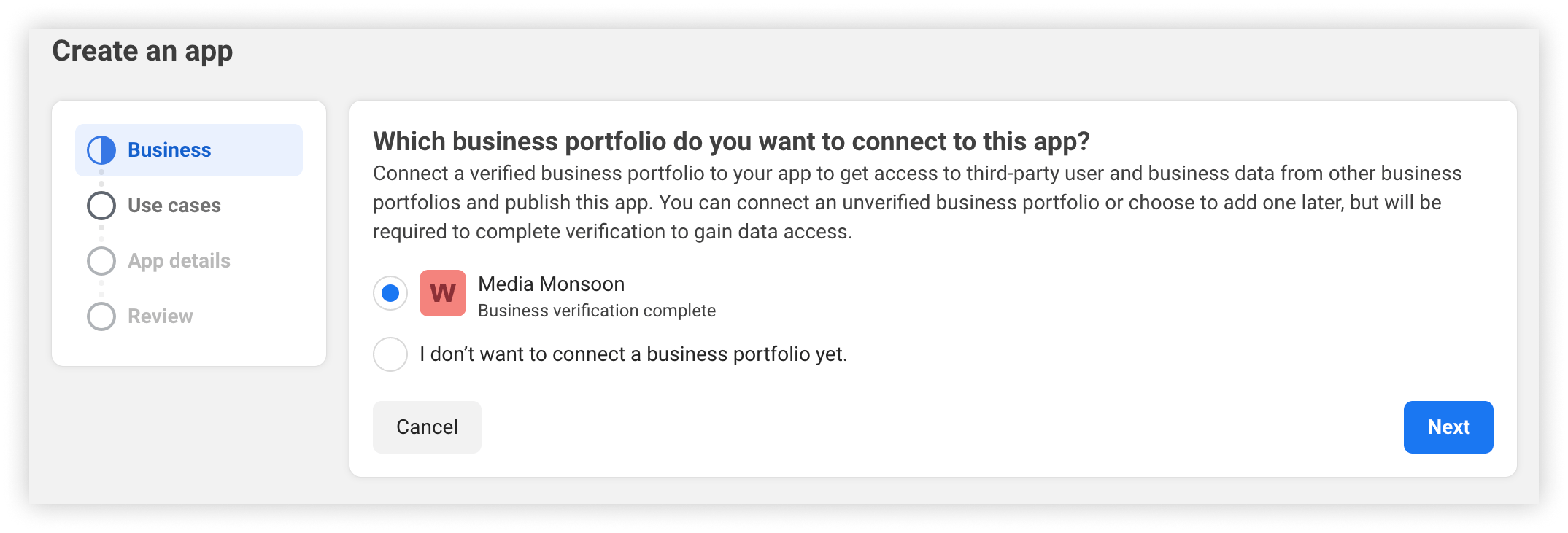 * Enter the **app name** and **contact email**, confirm the Business Portfolio, and click **Create app**.
 The same app can also be used for [Messenger](/pa/channels#messenger). You do not need a separate app per channel.
In **App Dashboard → App settings → Basic**, add the **App icon**, **Privacy Policy URL**, **Category**, and **Platform** (Website, with your platform URL).
Meta checks these during App Review.
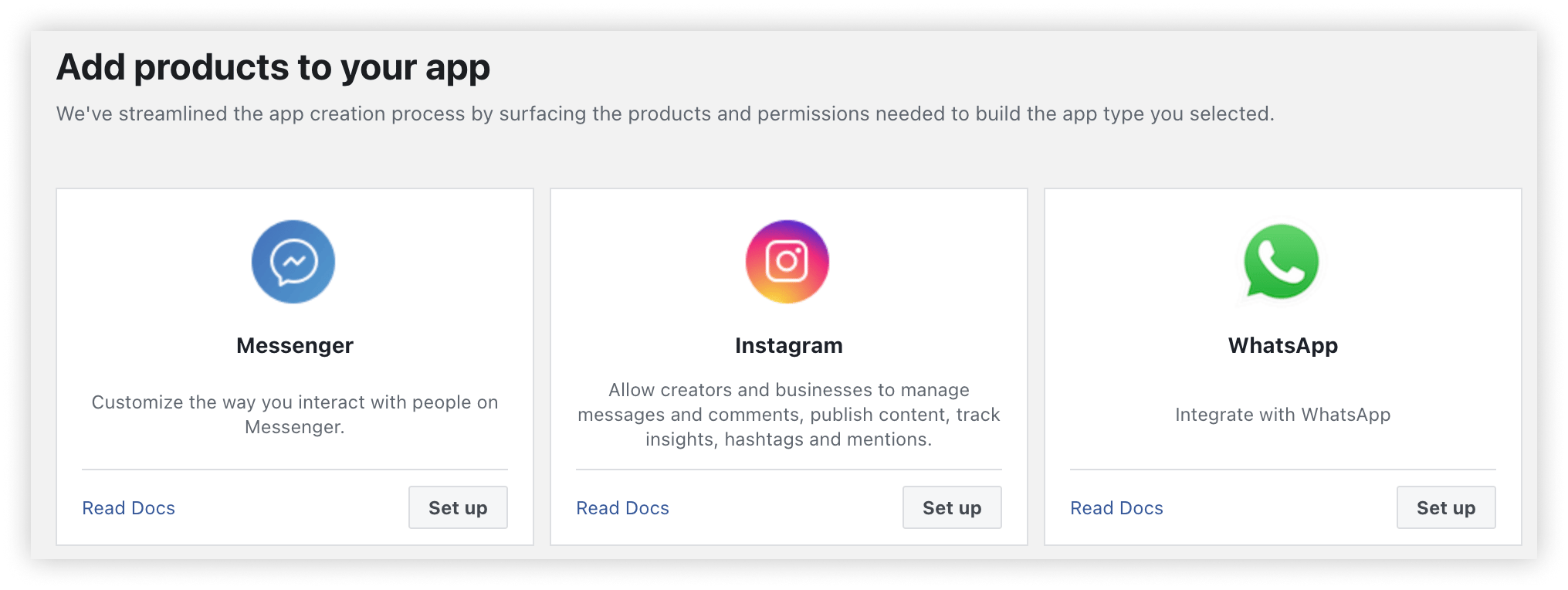
In the App Dashboard, open **Add Products**. Find **WhatsApp** and click **Set up**.
The same app can also be used for [Messenger](/pa/channels#messenger). You do not need a separate app per channel.
In **App Dashboard → App settings → Basic**, add the **App icon**, **Privacy Policy URL**, **Category**, and **Platform** (Website, with your platform URL).
Meta checks these during App Review.
In the App Dashboard, open **Add Products**. Find **WhatsApp** and click **Set up**.
 Continue until you reach the **Quickstart** panel.
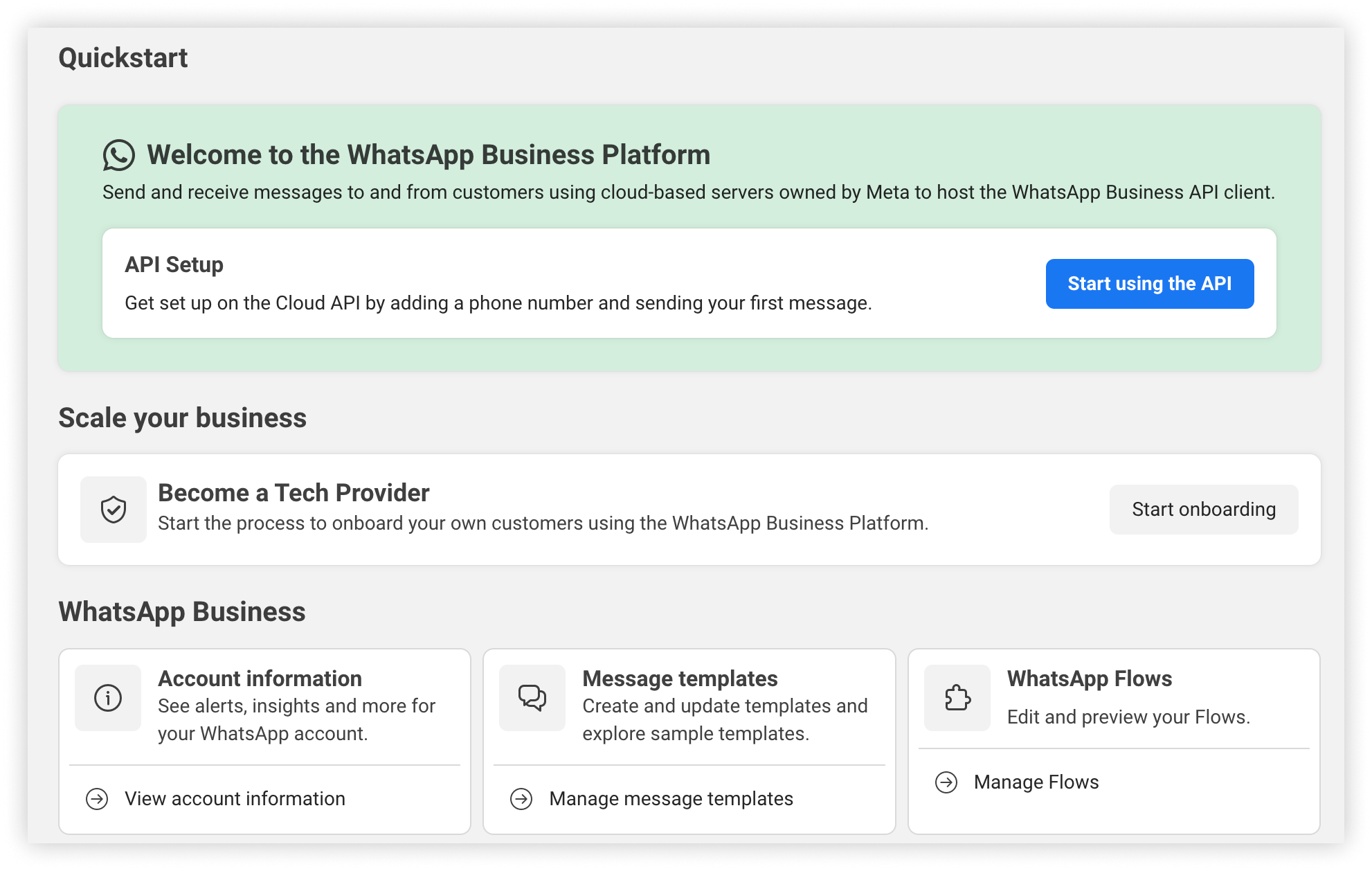 In the Quickstart panel, under **Scale your business**, find **Become a Tech Provider** and click **Start onboarding**.
 Choose **Independent Tech Provider** or **Working with a Solution Partner**, accept the **Tech Provider Terms**, and click **Start onboarding**.
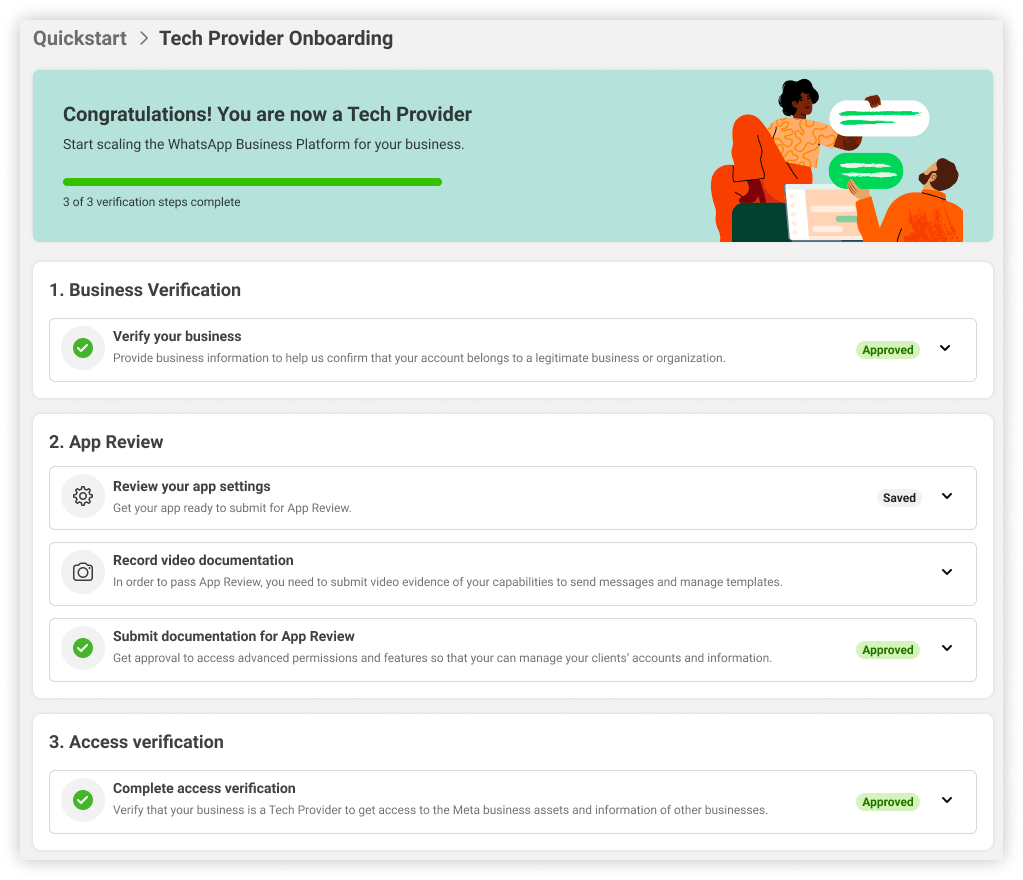
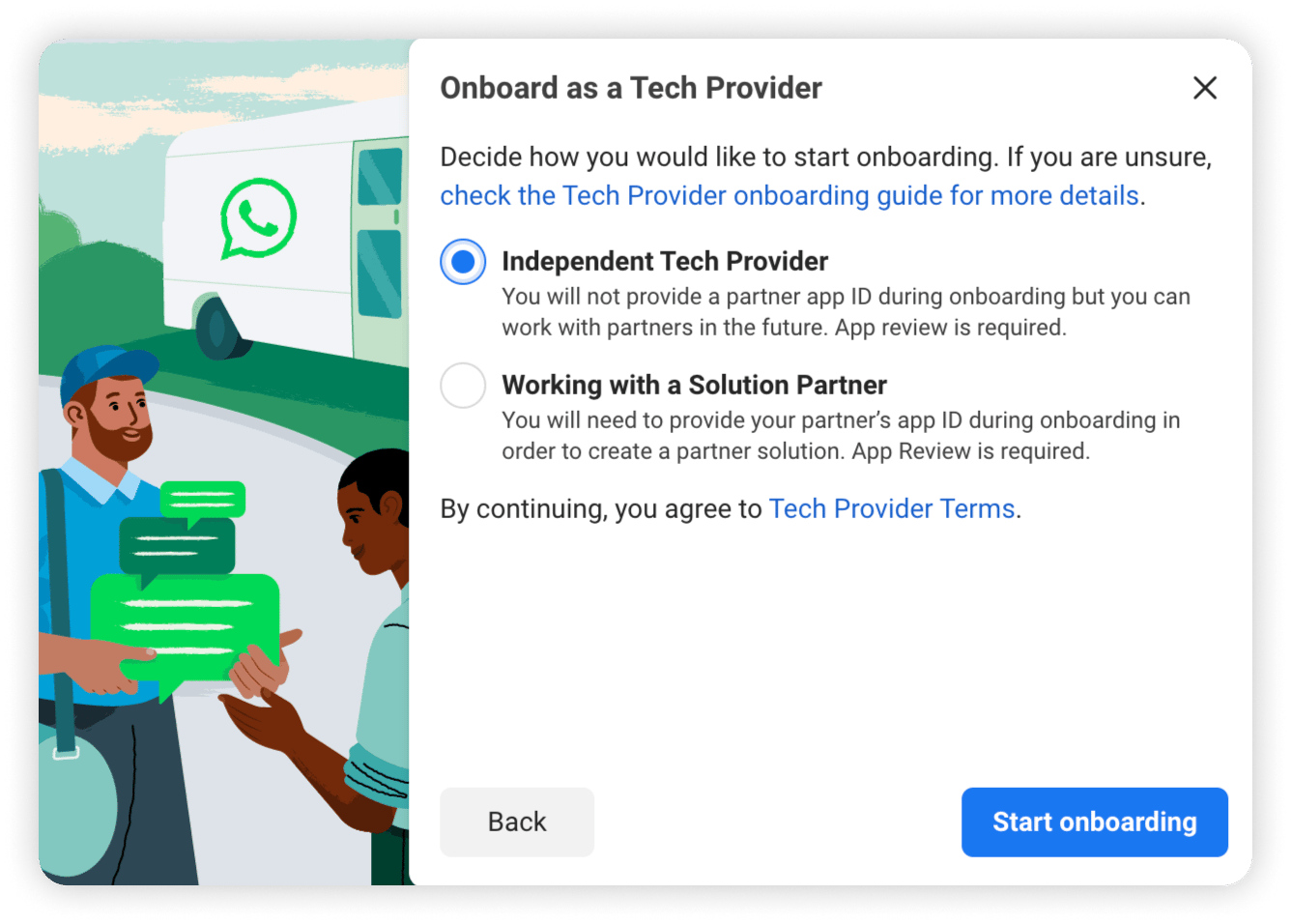 The **Tech Provider Onboarding** page opens with three sections: **Business Verification**, **App Review**, and **Access Verification**. The remaining steps complete each one.
## Complete Tech Provider onboarding
Under **1. Business Verification**, click **Start verification**.
The **Tech Provider Onboarding** page opens with three sections: **Business Verification**, **App Review**, and **Access Verification**. The remaining steps complete each one.
## Complete Tech Provider onboarding
Under **1. Business Verification**, click **Start verification**.
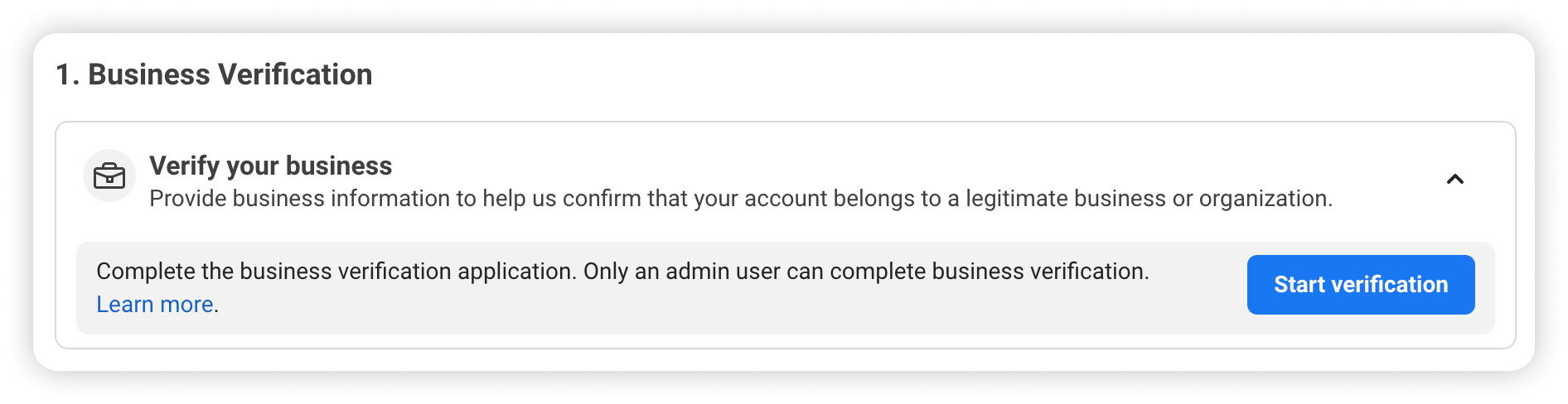 Submit your business details and legal documents. Verification can take a few days — track the status in your [Business Info settings](https://business.facebook.com/settings/info).
Only an **admin** of the Business Portfolio can complete business verification.
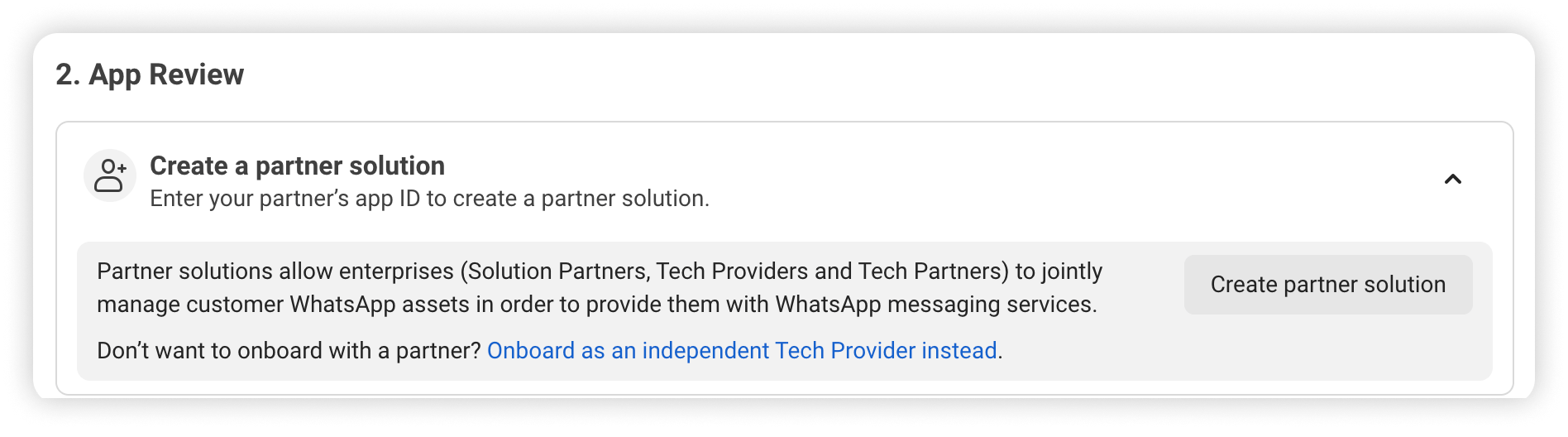
Only needed if you chose **Working with a Solution Partner** in **Step 6**, Start Tech Provider onboarding. Independent Tech Providers skip this step.
Under **2. App Review**, click **Create partner solution**.
Submit your business details and legal documents. Verification can take a few days — track the status in your [Business Info settings](https://business.facebook.com/settings/info).
Only an **admin** of the Business Portfolio can complete business verification.
Only needed if you chose **Working with a Solution Partner** in **Step 6**, Start Tech Provider onboarding. Independent Tech Providers skip this step.
Under **2. App Review**, click **Create partner solution**.
 Enter a **solution name** and your partner's **App ID**, then click **Send request**.
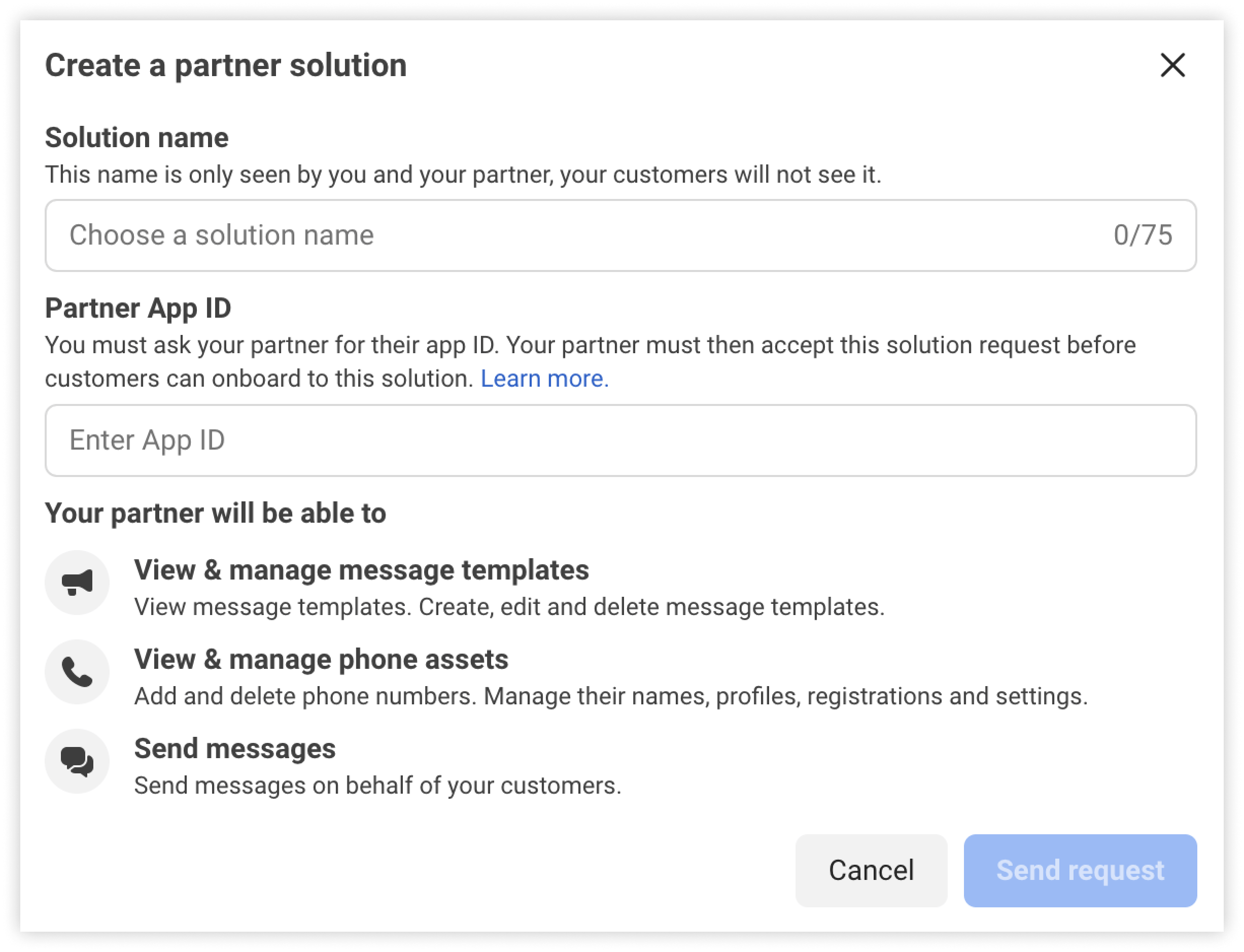 The solution shows as **Pending** until your partner accepts the request. You can continue with the next steps meanwhile.
Under **2. App Review**, click **Review app settings**.
The solution shows as **Pending** until your partner accepts the request. You can continue with the next steps meanwhile.
Under **2. App Review**, click **Review app settings**.
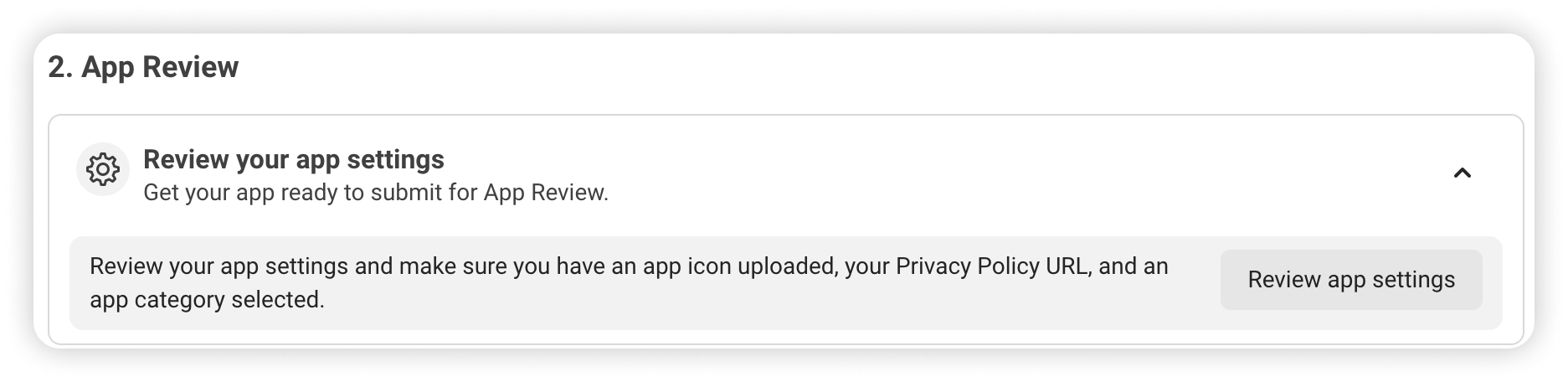 Confirm the app icon, Privacy Policy URL, and category from **Step 4**, Add basic app info, are in place.
Meta requires video evidence for the two permissions your app needs.
Confirm the app icon, Privacy Policy URL, and category from **Step 4**, Add basic app info, are in place.
Meta requires video evidence for the two permissions your app needs.
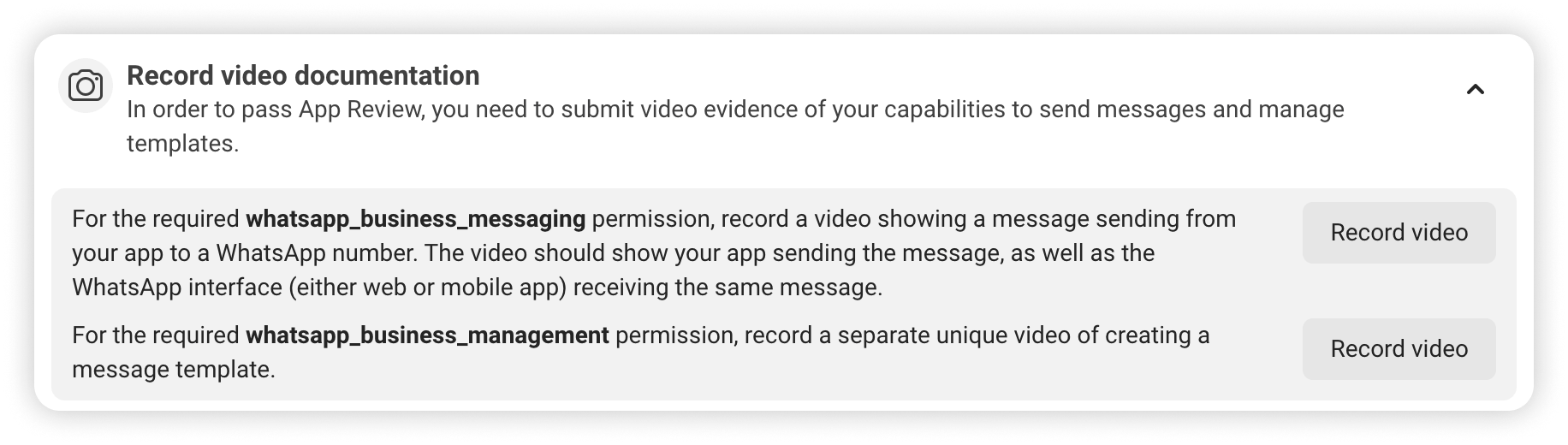 | Permission | What the video must show |
| ------------------------------ | ----------------------------------------------------------------------------------------------------- |
| `whatsapp_business_messaging` | A message sent from your platform, and the same message arriving in the WhatsApp app (web or mobile). |
| `whatsapp_business_management` | A message template being created from your platform. |
Record each video separately as a screen recording. Keep them short and make sure your platform's name and domain are visible.
Connect a test WhatsApp number to a tenant account first so you can record these flows from the tenant dashboard.
In the Quickstart panel, click **Begin App Review**. The request lists `whatsapp_business_messaging` and `whatsapp_business_management` as pending.
| Permission | What the video must show |
| ------------------------------ | ----------------------------------------------------------------------------------------------------- |
| `whatsapp_business_messaging` | A message sent from your platform, and the same message arriving in the WhatsApp app (web or mobile). |
| `whatsapp_business_management` | A message template being created from your platform. |
Record each video separately as a screen recording. Keep them short and make sure your platform's name and domain are visible.
Connect a test WhatsApp number to a tenant account first so you can record these flows from the tenant dashboard.
In the Quickstart panel, click **Begin App Review**. The request lists `whatsapp_business_messaging` and `whatsapp_business_management` as pending.
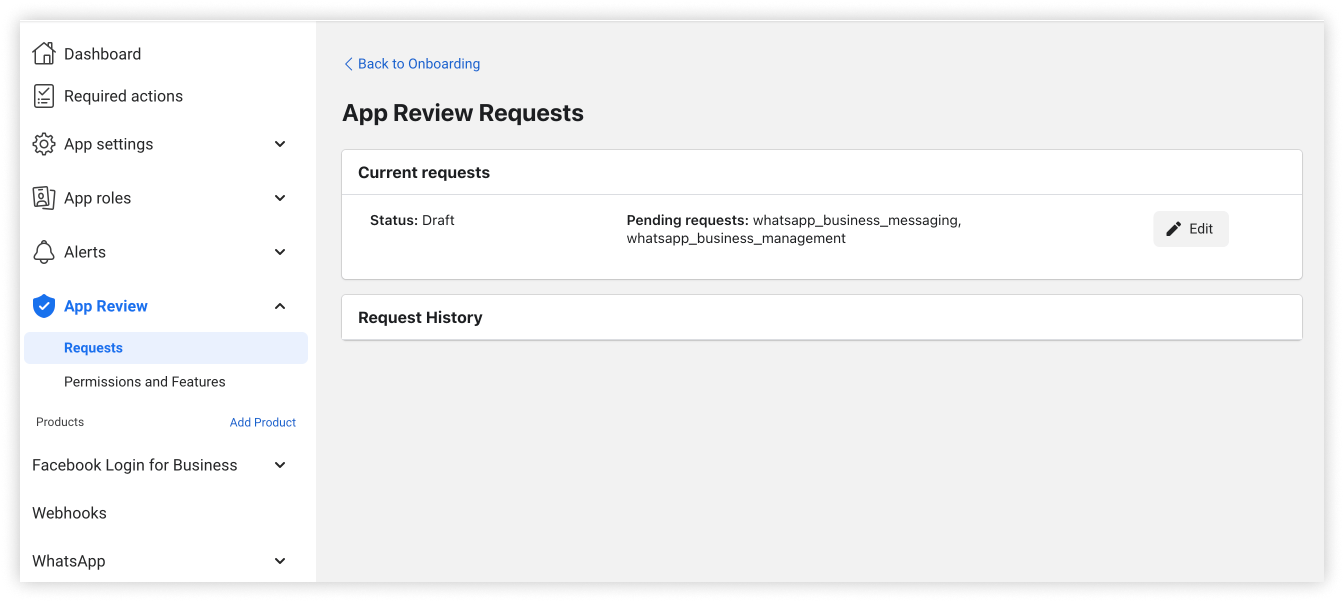 * For each permission, explain how your platform uses it and attach the matching video from **Step 10**.
* In **App verification details**, confirm the **Website** platform and site URL, and describe how a reviewer can test your integration.
* For each permission, explain how your platform uses it and attach the matching video from **Step 10**.
* In **App verification details**, confirm the **Website** platform and site URL, and describe how a reviewer can test your integration.
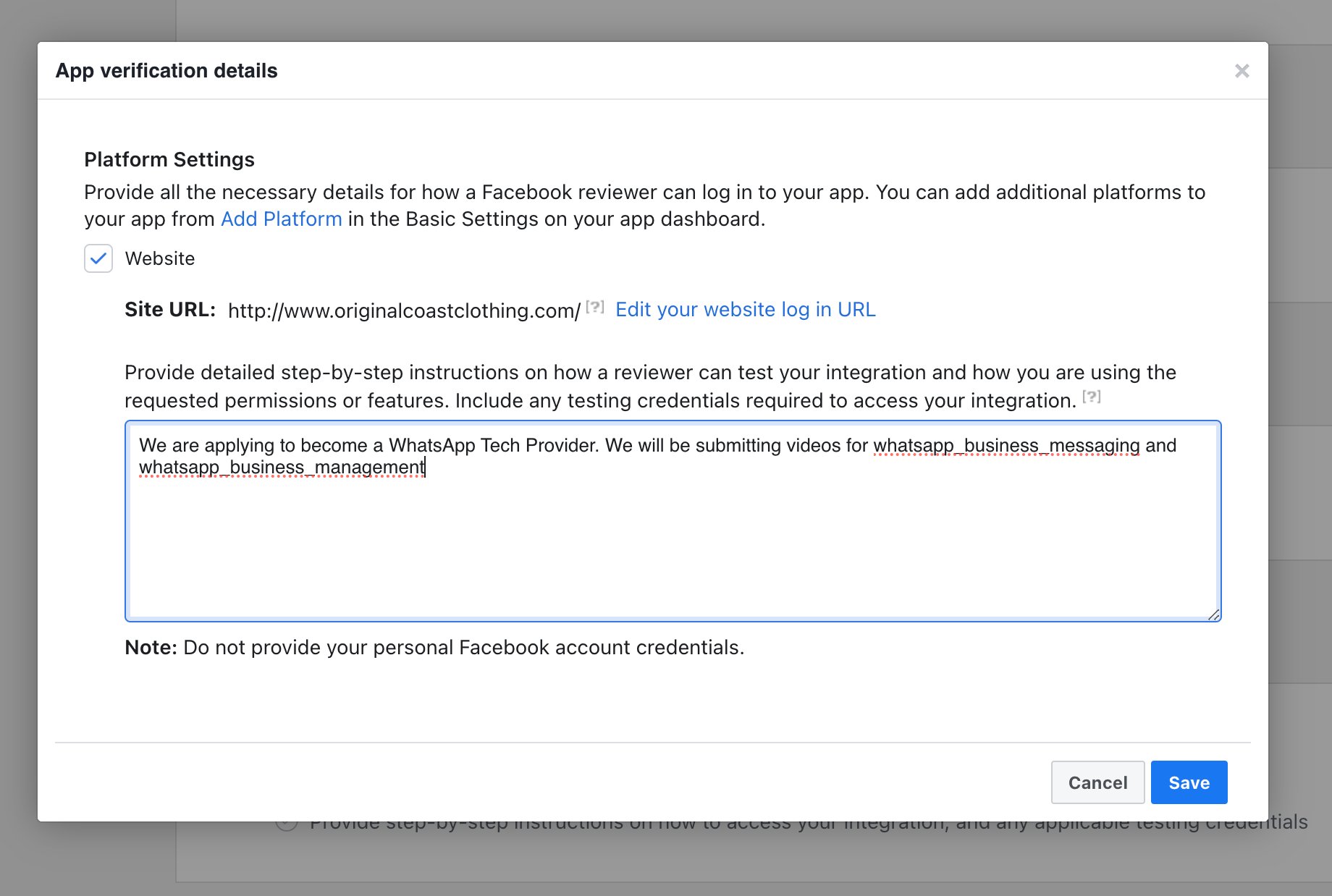 Submit the request. Meta notifies you by email and in **Developer Alerts**.
Do not provide your personal Facebook credentials in the reviewer instructions. Keep the explanation short and business-focused, and avoid technical jargon.
Under **3. Access Verification**, click **Start verification**.
Submit the request. Meta notifies you by email and in **Developer Alerts**.
Do not provide your personal Facebook credentials in the reviewer instructions. Keep the explanation short and business-focused, and avoid technical jargon.
Under **3. Access Verification**, click **Start verification**.
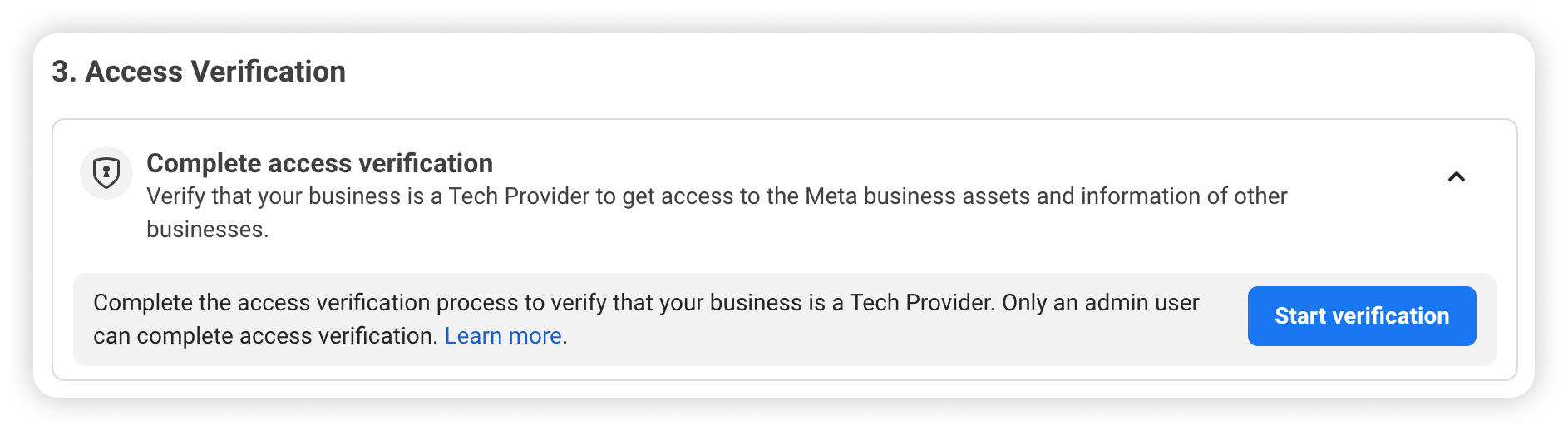 Provide the requested business information to confirm you are eligible as a Tech Provider.
When all three sections are approved, the Tech Provider Onboarding page shows **Congratulations! You are now a Tech Provider**.
Provide the requested business information to confirm you are eligible as a Tech Provider.
When all three sections are approved, the Tech Provider Onboarding page shows **Congratulations! You are now a Tech Provider**.
 Review timelines vary. Business verification and App Review can each take from a few days to a few weeks. Start well before your planned launch.
## After approval
Finish the app configuration that Embedded Signup relies on.
In **Facebook Login for Business → Configurations**, create a configuration with the **Embedded Signup** login variation and the `whatsapp_business_management` and `whatsapp_business_messaging` permissions.
Do **not** include `catalog_management`.
In **Facebook Login for Business → Settings**, add your platform domain to **Allowed Domains for the JavaScript SDK**. The tenant connection page is served from your domain.
In [**Settings → Channels → WhatsApp**](/pa/channels#meta-app-credentials), enter the **App ID**, **App Secret**, and the **Embedded Signup Config ID (no catalog)**, then save.
Click [**Connect Webhook**](/pa/channels#webhook-configuration) to register the webhook with Meta.
Enable **Embedded Signup (no catalog)** so tenants can start connecting.
## Helpful resources
Meta's official Tech Provider documentation.
Manage your Business Portfolio and verification.
The WhatsApp Business Platform reference.
Becoming a Meta Tech Provider, start to finish.
Review timelines vary. Business verification and App Review can each take from a few days to a few weeks. Start well before your planned launch.
## After approval
Finish the app configuration that Embedded Signup relies on.
In **Facebook Login for Business → Configurations**, create a configuration with the **Embedded Signup** login variation and the `whatsapp_business_management` and `whatsapp_business_messaging` permissions.
Do **not** include `catalog_management`.
In **Facebook Login for Business → Settings**, add your platform domain to **Allowed Domains for the JavaScript SDK**. The tenant connection page is served from your domain.
In [**Settings → Channels → WhatsApp**](/pa/channels#meta-app-credentials), enter the **App ID**, **App Secret**, and the **Embedded Signup Config ID (no catalog)**, then save.
Click [**Connect Webhook**](/pa/channels#webhook-configuration) to register the webhook with Meta.
Enable **Embedded Signup (no catalog)** so tenants can start connecting.
## Helpful resources
Meta's official Tech Provider documentation.
Manage your Business Portfolio and verification.
The WhatsApp Business Platform reference.
Becoming a Meta Tech Provider, start to finish.