> ## Documentation Index
> Fetch the complete documentation index at: https://reseller-docs.wamatrix.io/llms.txt
> Use this file to discover all available pages before exploring further.
# Offline payments
> Review and approve tenant bank transfer payment requests.
When a tenant pays by bank transfer instead of an online payment gateway, they can submit a payment request from their billing page.
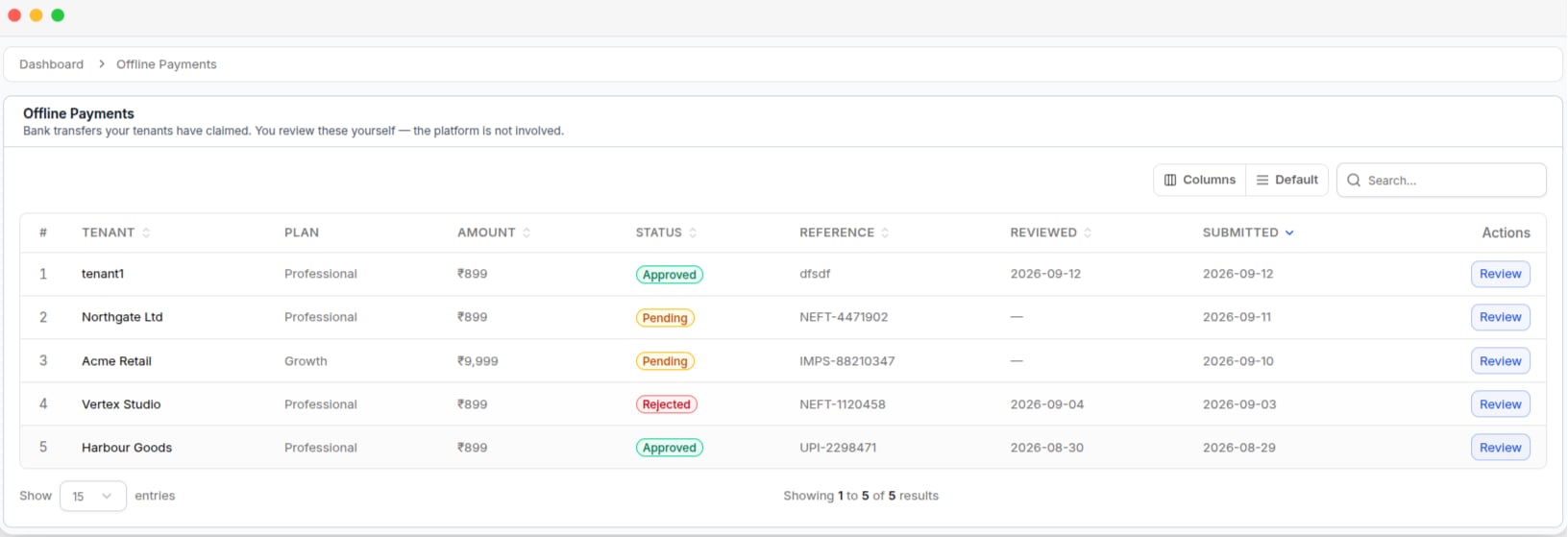
**Sales → Offline Payments** is where you review these requests.
 Offline payments are handled directly between you and the tenant. The platform does not verify the bank transfer. The tenant's subscription is updated only after you approve the request.
## Offline payment process
The tenant sends the payment to your bank account.
The tenant submits a payment request with the payment reference. The request appears as **Pending**.
Check your bank account and confirm the payment was received.
**Approve** the request to activate the subscription, or **Reject** it if the payment cannot be verified.
## Payment request details
| Column | Description |
| ------------- | -------------------------------------------------------- |
| **Tenant** | Tenant who submitted the payment request. |
| **Plan** | Plan the tenant is paying for. |
| **Amount** | Amount submitted by the tenant. |
| **Status** | Current request status: Pending, Approved, or Rejected. |
| **Reference** | Payment reference provided by the tenant. |
| **Reviewed** | Date and time when the request was approved or rejected. |
| **Submitted** | Date and time when the request was submitted. |
## Review a payment request
Click a request to view its details.
Offline payments are handled directly between you and the tenant. The platform does not verify the bank transfer. The tenant's subscription is updated only after you approve the request.
## Offline payment process
The tenant sends the payment to your bank account.
The tenant submits a payment request with the payment reference. The request appears as **Pending**.
Check your bank account and confirm the payment was received.
**Approve** the request to activate the subscription, or **Reject** it if the payment cannot be verified.
## Payment request details
| Column | Description |
| ------------- | -------------------------------------------------------- |
| **Tenant** | Tenant who submitted the payment request. |
| **Plan** | Plan the tenant is paying for. |
| **Amount** | Amount submitted by the tenant. |
| **Status** | Current request status: Pending, Approved, or Rejected. |
| **Reference** | Payment reference provided by the tenant. |
| **Reviewed** | Date and time when the request was approved or rejected. |
| **Submitted** | Date and time when the request was submitted. |
## Review a payment request
Click a request to view its details.
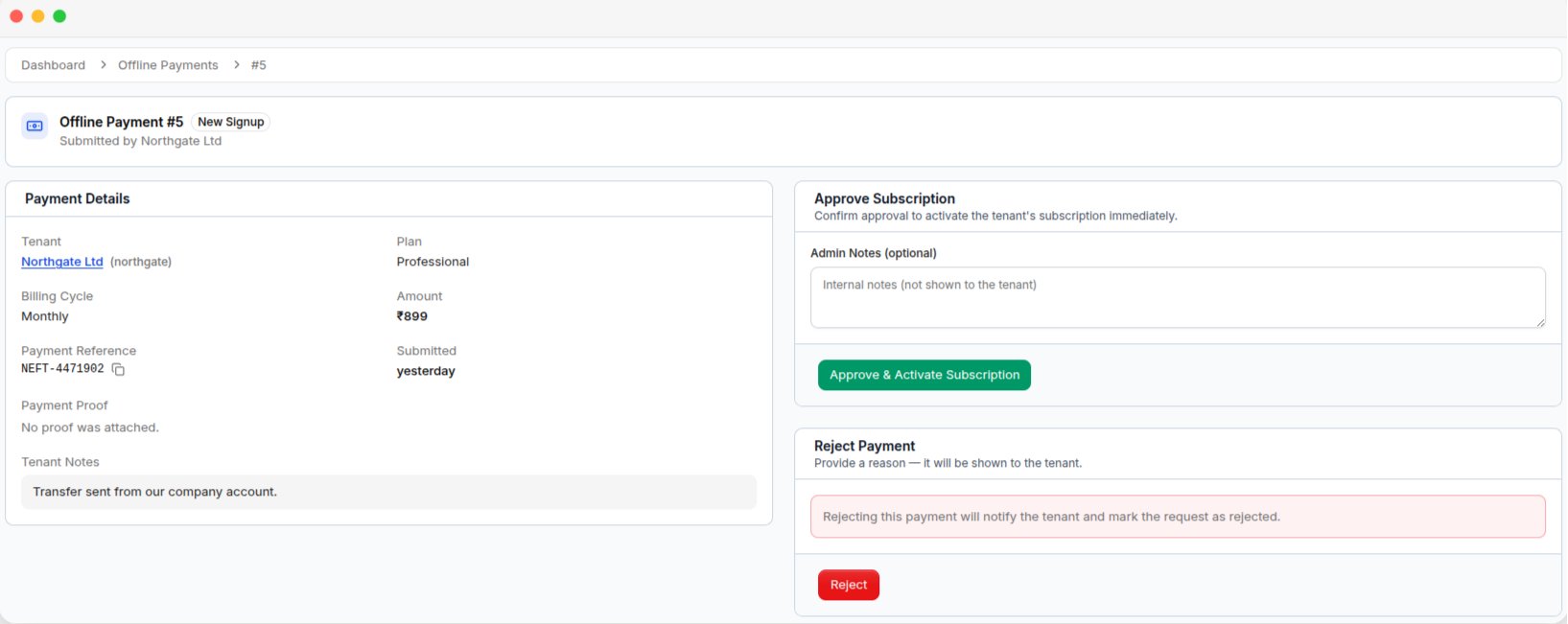 | Section | What it shows |
| ------------------- | --------------------------------------------------------------------------------------------------- |
| **Payment Details** | Tenant, plan, billing cycle, payment amount, payment reference, submission date, and payment proof. |
| **Review Actions** | Approve or reject the request while it is pending. |
| **Review Decision** | The review result, reviewer, review date, and notes after the request is reviewed. |
### Verify the payment
Before approving a request:
Check your bank account to confirm that the payment was received.
Compare the **Amount** with the amount received.
Match the **Reference** against your bank statement.
If payment proof is attached, select **View Proof** to check it.
Payment proof is optional. If the tenant does not upload a file, the payment details will show that no proof was attached.
## Approve a payment request
Select **Approve & Activate Subscription** after confirming the payment. Approval will:
* Activate or renew the tenant's subscription.
* Create an invoice and mark it as paid.
* Send a confirmation email to the tenant.
You can also add an **Admin Note** during approval. Admin notes are for internal use and are not shown to the tenant.
**Approval cannot be undone.** Make sure the payment has been received and the amount is correct before approving the request.
## Reject a payment request
If the payment cannot be verified, select **Reject**. A rejection reason is required.
The **rejection reason is shown to the tenant**. Write a clear reason that explains why the payment request was rejected — for example, *"No payment was received with this reference."*
The tenant receives an email with the rejection reason. Their subscription is not changed, and they can submit a new payment request after correcting the issue.
Any payment proof uploaded by the tenant is deleted when the request is rejected. Download the proof first if you need to keep a copy.
## Reviewed payment requests
Approved and rejected requests remain in the list as payment history.
* Reviewed requests cannot be edited or deleted.
* A request can only be reviewed once.
* An approved or rejected request cannot be reviewed again.
| Section | What it shows |
| ------------------- | --------------------------------------------------------------------------------------------------- |
| **Payment Details** | Tenant, plan, billing cycle, payment amount, payment reference, submission date, and payment proof. |
| **Review Actions** | Approve or reject the request while it is pending. |
| **Review Decision** | The review result, reviewer, review date, and notes after the request is reviewed. |
### Verify the payment
Before approving a request:
Check your bank account to confirm that the payment was received.
Compare the **Amount** with the amount received.
Match the **Reference** against your bank statement.
If payment proof is attached, select **View Proof** to check it.
Payment proof is optional. If the tenant does not upload a file, the payment details will show that no proof was attached.
## Approve a payment request
Select **Approve & Activate Subscription** after confirming the payment. Approval will:
* Activate or renew the tenant's subscription.
* Create an invoice and mark it as paid.
* Send a confirmation email to the tenant.
You can also add an **Admin Note** during approval. Admin notes are for internal use and are not shown to the tenant.
**Approval cannot be undone.** Make sure the payment has been received and the amount is correct before approving the request.
## Reject a payment request
If the payment cannot be verified, select **Reject**. A rejection reason is required.
The **rejection reason is shown to the tenant**. Write a clear reason that explains why the payment request was rejected — for example, *"No payment was received with this reference."*
The tenant receives an email with the rejection reason. Their subscription is not changed, and they can submit a new payment request after correcting the issue.
Any payment proof uploaded by the tenant is deleted when the request is rejected. Download the proof first if you need to keep a copy.
## Reviewed payment requests
Approved and rejected requests remain in the list as payment history.
* Reviewed requests cannot be edited or deleted.
* A request can only be reviewed once.
* An approved or rejected request cannot be reviewed again.