> ## Documentation Index
> Fetch the complete documentation index at: https://reseller-docs.wamatrix.io/llms.txt
> Use this file to discover all available pages before exploring further.
# Messenger Permissions
> Set up your Meta app for Facebook Messenger and get the Page permissions approved.
Tenants connect a Facebook Page through **Embedded Signup** (Facebook Login) or **Manual Connect** (Page ID and Page Access Token). Embedded Signup runs on your Meta app, so the app needs the Messenger product, a Facebook Login for Business configuration, and **Advanced Access** to the Page permissions listed below.
Until App Review is approved, the permissions work only for people who hold a role on your app (admins, developers, testers). Use this to test the connection before you submit for review.
## Required permissions
The platform requests these permissions when a tenant connects a Page. Include all five in your Facebook Login configuration.
| Permission | What the platform uses it for | Access level |
| ----------------------- | --------------------------------------------------------------------------- | ------------------------------------ |
| `pages_show_list` | Lists the Pages the tenant manages so they can choose one to connect. | Standard. No App Review needed. |
| `pages_messaging` | Sends and receives messages in the Page's Messenger conversations. | App Review |
| `pages_manage_metadata` | Subscribes the Page to your webhook so events reach the platform. | App Review |
| `pages_read_engagement` | Reads the Page profile (name, category) shown in the tenant's channel list. | App Review |
| `business_management` | Lets tenants connect Pages that are owned by a Business Portfolio. | App Review and Business Verification |
`pages_messaging` and `pages_manage_metadata` are the two that matter most. Without both, a Page cannot be subscribed to the webhook and no messages arrive.
## Webhook events
The platform subscribes to these Page events. You do not select them in the Meta dashboard — **Connect Webhook** registers them at the app level, and each Page is subscribed when a tenant connects.
| Event | Sent when |
| --------------------- | ------------------------------------------------------------------------------ |
| `messages` | A customer sends a message to the Page. |
| `messaging_postbacks` | A customer taps a button, Get Started, or a persistent menu item. |
| `message_deliveries` | A message sent by the Page is delivered. |
| `message_reads` | A customer reads a message sent by the Page. |
| `message_echoes` | The Page sends a message, including messages sent outside the platform. |
| `messaging_handovers` | The conversation is handed over between apps (Handover Protocol). |
| `messaging_referrals` | A customer starts a conversation from an m.me link or a click-to-Messenger ad. |
## Before you start
| Requirement | Details |
| ------------------------------- | -------------------------------------------------------------------------------------------------------------------------------------------------- |
| **Business-type Meta app** | The same app you use for WhatsApp works. Meta allows both products in one app. |
| **Verified Business Portfolio** | Business Verification is required for Advanced Access. See [Tech Provider Approval](/pa/tech-provider-approval#complete-tech-provider-onboarding). |
| **A published Facebook Page** | A Page you control, for testing the connection and recording the App Review screencast. |
| **App settings** | App icon, Privacy Policy URL, and category in **App settings → Basic**. |
## Set up your Meta app
If you already created an app for WhatsApp, skip to the next step — the same app works.
Otherwise, go to [Meta Apps](https://developers.facebook.com/apps) and click **Create App**:
* Enter the app name and contact email.
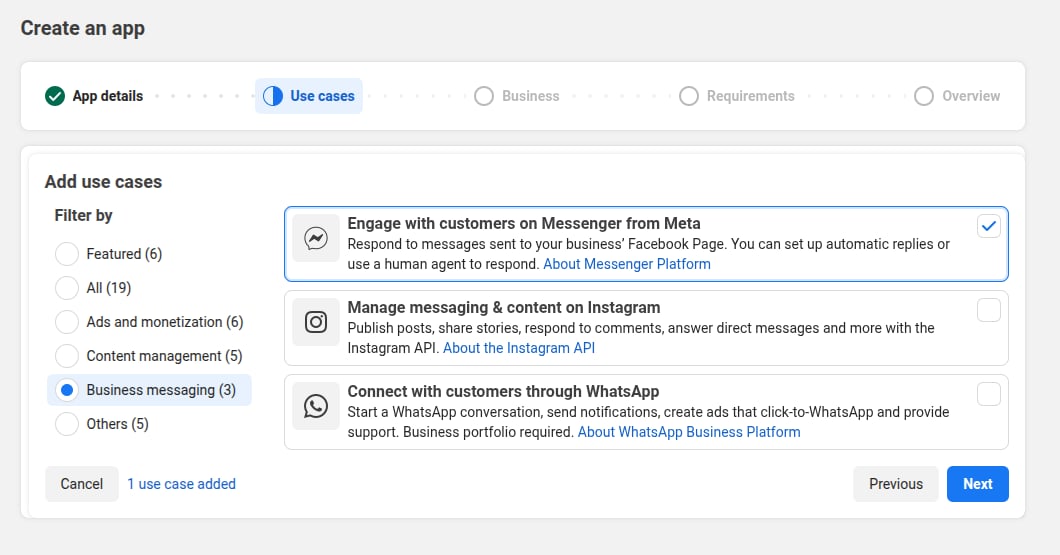
* Under **Use cases**, select **Engage with customers on Messenger from Meta**.
 * Connect your **Business Portfolio**.
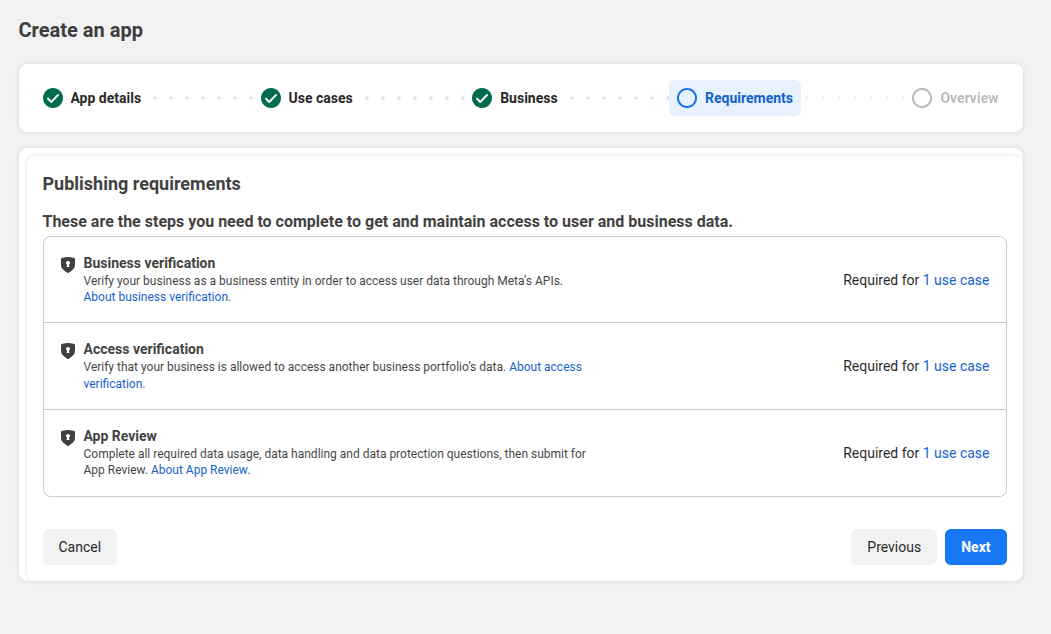
* Review the **Publishing requirements**. Meta lists Business verification, Access verification, and App Review. This page covers all three.
* Connect your **Business Portfolio**.
* Review the **Publishing requirements**. Meta lists Business verification, Access verification, and App Review. This page covers all three.
 * Click **Go to dashboard**.
In the App Dashboard, open **Add Product**. Find **Messenger** and click **Set up**.
If you created the app with the Messenger use case, the product is already added.
Go to **Facebook Login for Business → Configurations** and click **Create configuration**.
| Setting | Value |
| ------------------- | ------------------------------------------------------------------------------ |
| **Name** | For example, `Messenger Page Connect`. |
| **Login variation** | General. |
| **Token type** | **User access token** — the platform lists the tenant's Pages with this token. |
| **Assets** | Pages. |
| **Permissions** | The five permissions from [Required permissions](#required-permissions). |
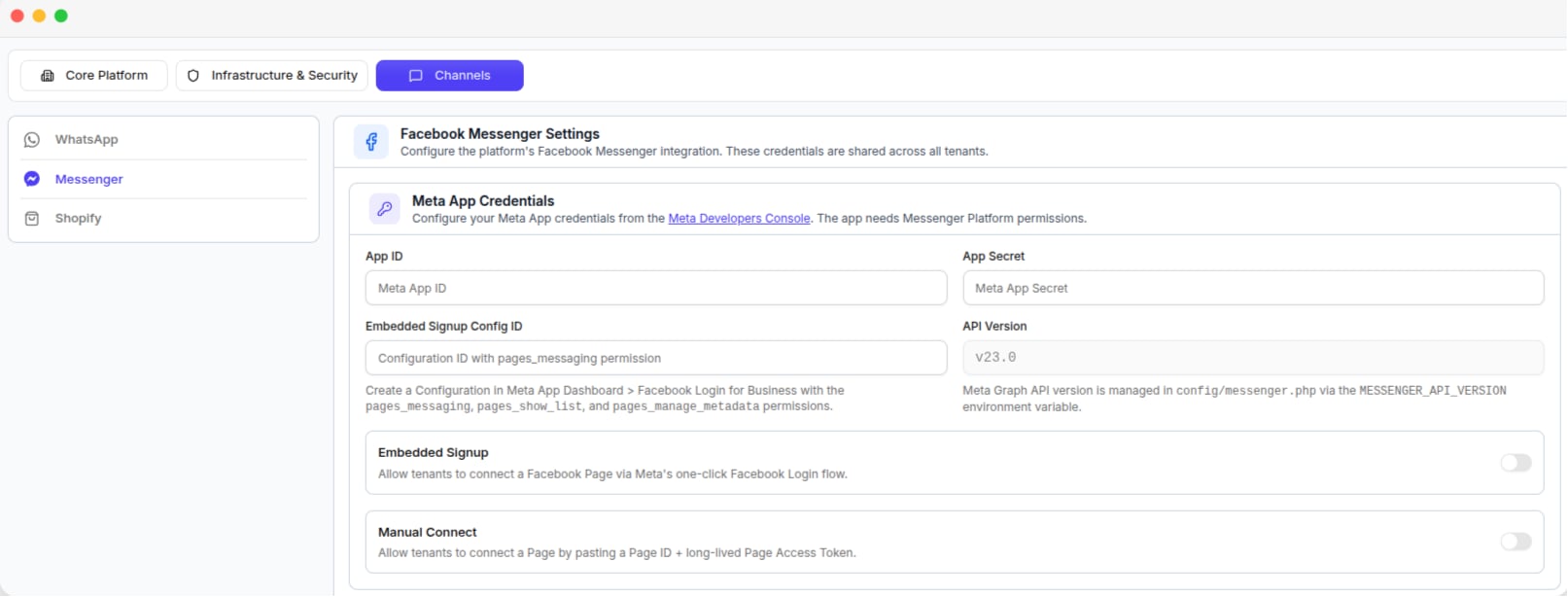
Save and copy the **Configuration ID**. It goes into [**Settings → Channels → Messenger → Embedded Signup Config ID**](/pa/channels#messenger).
The Page connection page is served from your platform domain and uses Meta's JavaScript SDK.
* Go to **Facebook Login for Business → Settings**.
* Add your platform domain to **Allowed Domains for the JavaScript SDK**.
* Turn on **Login with the JavaScript SDK**, **Client OAuth login**, **Web OAuth login**, and **Enforce HTTPS**.
In [**Settings → Channels → Messenger**](/pa/channels#messenger):
1. Enter the **App ID**, **App Secret**, and **Config ID**, then save.
2. Click **Connect Webhook**. This registers the webhook URL with Meta for Page events and generates the verify token automatically.
3. Turn on **Embedded Signup**, and **Manual Connect** if you want to allow it.
* Click **Go to dashboard**.
In the App Dashboard, open **Add Product**. Find **Messenger** and click **Set up**.
If you created the app with the Messenger use case, the product is already added.
Go to **Facebook Login for Business → Configurations** and click **Create configuration**.
| Setting | Value |
| ------------------- | ------------------------------------------------------------------------------ |
| **Name** | For example, `Messenger Page Connect`. |
| **Login variation** | General. |
| **Token type** | **User access token** — the platform lists the tenant's Pages with this token. |
| **Assets** | Pages. |
| **Permissions** | The five permissions from [Required permissions](#required-permissions). |
Save and copy the **Configuration ID**. It goes into [**Settings → Channels → Messenger → Embedded Signup Config ID**](/pa/channels#messenger).
The Page connection page is served from your platform domain and uses Meta's JavaScript SDK.
* Go to **Facebook Login for Business → Settings**.
* Add your platform domain to **Allowed Domains for the JavaScript SDK**.
* Turn on **Login with the JavaScript SDK**, **Client OAuth login**, **Web OAuth login**, and **Enforce HTTPS**.
In [**Settings → Channels → Messenger**](/pa/channels#messenger):
1. Enter the **App ID**, **App Secret**, and **Config ID**, then save.
2. Click **Connect Webhook**. This registers the webhook URL with Meta for Page events and generates the verify token automatically.
3. Turn on **Embedded Signup**, and **Manual Connect** if you want to allow it.
 Before submitting for review, confirm the flow works end to end:
* In the App Dashboard, open **App roles** and add your Facebook account as an **Admin** or **Tester**.
* Log in to a tenant account on your platform and connect your test Page through **Embedded Signup**.
* Send a message to the Page from Messenger and reply from the platform inbox.
Record this test. It doubles as the screencast for App Review.
## Submit for App Review
In the App Dashboard, go to **App Review → Permissions and Features**.
Request **Advanced Access** for `pages_messaging`, `pages_manage_metadata`, `pages_read_engagement`, and `business_management`.
For each permission, describe in one or two sentences how tenants use it on your platform, and upload the screencast.
The video must show the Facebook Login dialog granting the permission and the feature in use — for example, connecting a Page and replying to a customer message.
Provide step-by-step instructions and a test login (a tenant account on your platform) so Meta's reviewer can repeat the flow.
Meta rejects the whole submission if the reviewer cannot log in and test the integration. Do not use your personal Facebook credentials as the test login.
Finish **Business Verification** in your Business Portfolio if it is still pending.
Meta notifies you by email and in **Developer Alerts**. Review typically takes from a few days to a few weeks.
## Manual Connect
Manual Connect does not go through Facebook Login, so it does not use the configuration from **Step 3** above. Tenants supply a **Page ID** and a **long-lived Page Access Token**, generated in their Meta Business Suite under **System Users → Generate Token** with the `pages_messaging` permission scoped to the Page.
Enable it from [**Settings → Channels → Messenger**](/pa/channels#tenant-connection-options) if you want to offer this option alongside Embedded Signup.
## Helpful resources
Meta's Messenger Platform documentation.
Every Meta permission and what it grants.
Configurations, login variations, and token types.
The Page events your app can subscribe to.
Standard versus Advanced Access explained.
How Meta reviews permission requests.
Before submitting for review, confirm the flow works end to end:
* In the App Dashboard, open **App roles** and add your Facebook account as an **Admin** or **Tester**.
* Log in to a tenant account on your platform and connect your test Page through **Embedded Signup**.
* Send a message to the Page from Messenger and reply from the platform inbox.
Record this test. It doubles as the screencast for App Review.
## Submit for App Review
In the App Dashboard, go to **App Review → Permissions and Features**.
Request **Advanced Access** for `pages_messaging`, `pages_manage_metadata`, `pages_read_engagement`, and `business_management`.
For each permission, describe in one or two sentences how tenants use it on your platform, and upload the screencast.
The video must show the Facebook Login dialog granting the permission and the feature in use — for example, connecting a Page and replying to a customer message.
Provide step-by-step instructions and a test login (a tenant account on your platform) so Meta's reviewer can repeat the flow.
Meta rejects the whole submission if the reviewer cannot log in and test the integration. Do not use your personal Facebook credentials as the test login.
Finish **Business Verification** in your Business Portfolio if it is still pending.
Meta notifies you by email and in **Developer Alerts**. Review typically takes from a few days to a few weeks.
## Manual Connect
Manual Connect does not go through Facebook Login, so it does not use the configuration from **Step 3** above. Tenants supply a **Page ID** and a **long-lived Page Access Token**, generated in their Meta Business Suite under **System Users → Generate Token** with the `pages_messaging` permission scoped to the Page.
Enable it from [**Settings → Channels → Messenger**](/pa/channels#tenant-connection-options) if you want to offer this option alongside Embedded Signup.
## Helpful resources
Meta's Messenger Platform documentation.
Every Meta permission and what it grants.
Configurations, login variations, and token types.
The Page events your app can subscribe to.
Standard versus Advanced Access explained.
How Meta reviews permission requests.