> ## Documentation Index
> Fetch the complete documentation index at: https://reseller-docs.wamatrix.io/llms.txt
> Use this file to discover all available pages before exploring further.
# Media library
> Manage your files and monitor tenant storage usage.
**Media Library** contains two sections.
Manage your own files.
View storage usage for all tenants.
**Tenant Media is available only to the account owner.** It cannot be given to staff through roles.
## My Media
**My Media** is your personal file library. You can store images and documents used in the admin panel, such as email templates and banners.
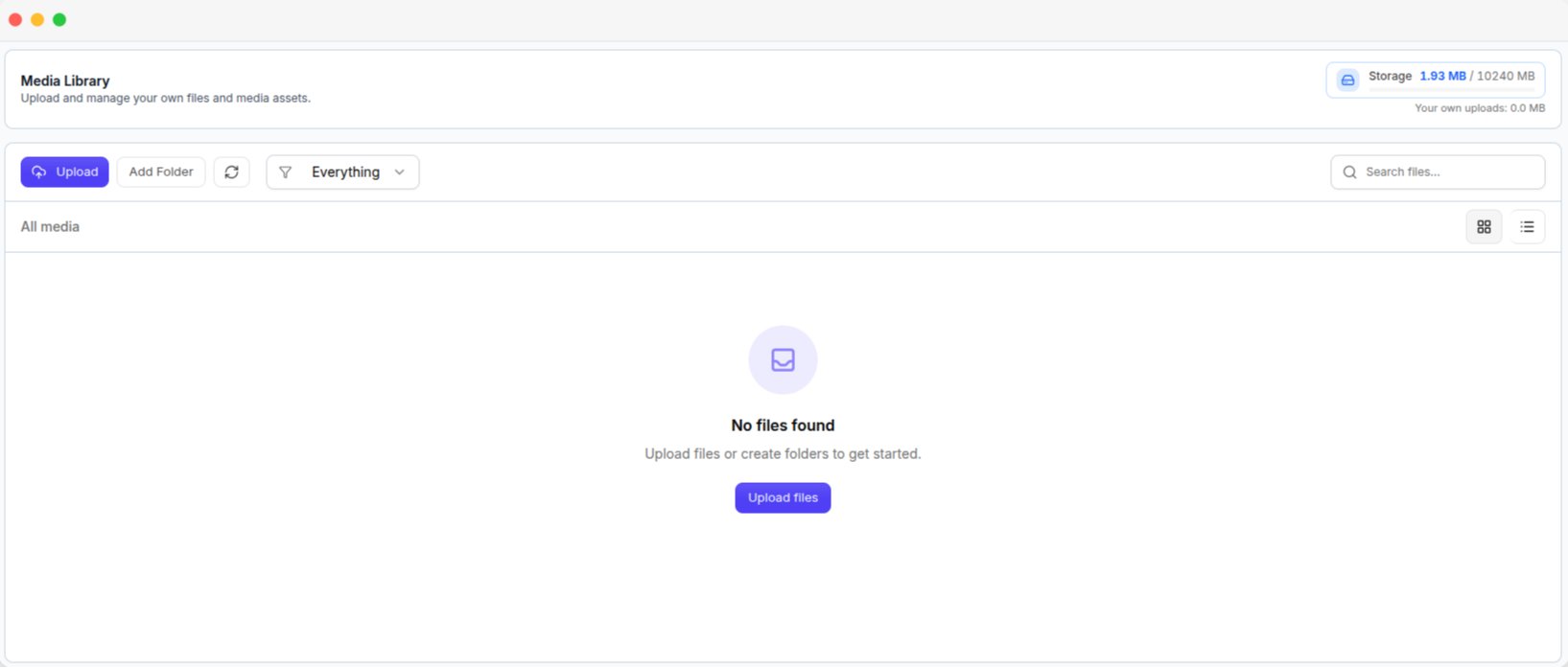 Tenants cannot access your files. Each tenant has a separate media library in their workspace.
### What you can do
* **Upload** files and organize them into folders.
* **Delete** single or multiple files.
* **Copy file URL** to use a file elsewhere in the platform.
### Storage usage
The storage card shows the total storage used by your platform and tenants. The indicator changes to:
* **Amber** when usage is above 75%.
* **Red** when usage is above 90%.
Use **Tenant Media** to find which tenants are using the most storage.
## Tenant Media
**Media Library → Tenant Media** shows storage usage for all tenants.
Tenants cannot access your files. Each tenant has a separate media library in their workspace.
### What you can do
* **Upload** files and organize them into folders.
* **Delete** single or multiple files.
* **Copy file URL** to use a file elsewhere in the platform.
### Storage usage
The storage card shows the total storage used by your platform and tenants. The indicator changes to:
* **Amber** when usage is above 75%.
* **Red** when usage is above 90%.
Use **Tenant Media** to find which tenants are using the most storage.
## Tenant Media
**Media Library → Tenant Media** shows storage usage for all tenants.
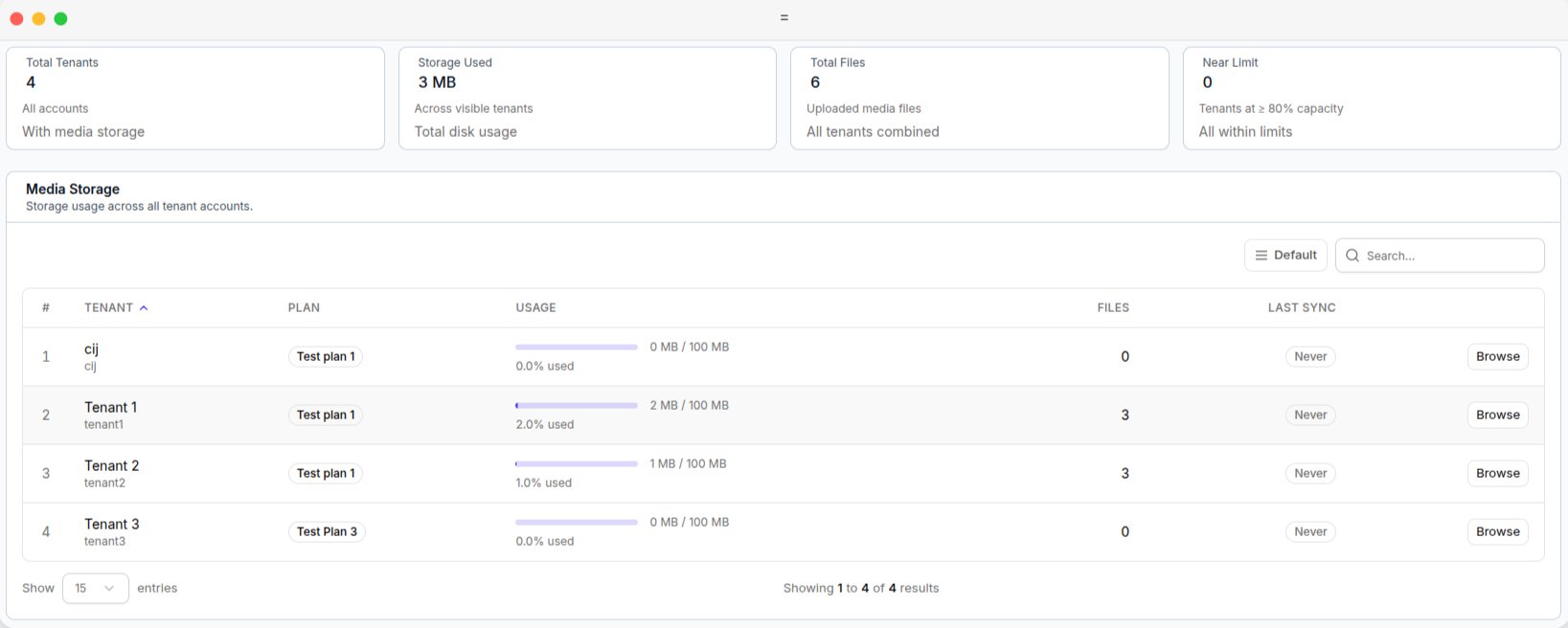 The page provides summary cards for **Total Tenants**, **Storage Used**, **Total Files**, and **Near Limit**.
### Tenant list
| Column | Description |
| ------------- | ---------------------------------------------- |
| **Tenant** | Tenant name. |
| **Plan** | Tenant's current plan. |
| **Usage** | Storage used by the tenant. |
| **Files** | Number of files stored by the tenant. |
| **Last Sync** | Last time the storage information was updated. |
Storage information is updated periodically, not in real time. **Last Sync** shows when the information was last updated.
### View tenant files
Open a tenant to view their files. You can open a file, copy its URL, or delete it.
Deleting a tenant's file is permanent. Only delete tenant files when necessary or when the tenant has requested it.
The page provides summary cards for **Total Tenants**, **Storage Used**, **Total Files**, and **Near Limit**.
### Tenant list
| Column | Description |
| ------------- | ---------------------------------------------- |
| **Tenant** | Tenant name. |
| **Plan** | Tenant's current plan. |
| **Usage** | Storage used by the tenant. |
| **Files** | Number of files stored by the tenant. |
| **Last Sync** | Last time the storage information was updated. |
Storage information is updated periodically, not in real time. **Last Sync** shows when the information was last updated.
### View tenant files
Open a tenant to view their files. You can open a file, copy its URL, or delete it.
Deleting a tenant's file is permanent. Only delete tenant files when necessary or when the tenant has requested it.