> ## Documentation Index
> Fetch the complete documentation index at: https://reseller-docs.wamatrix.io/llms.txt
> Use this file to discover all available pages before exploring further.
# Managing tenants
> Find, view, manage, and remove tenant workspaces.
The **Tenant List**, under **Tenant** in the sidebar, is where tenant workspaces are managed after onboarding. From this page, you can find tenants, view their details, change their plan, access their workspace, change their status, and delete them.
To create a tenant workspace, see [Onboarding a tenant](/pa/onboarding-a-sub-tenant).
## Find a tenant
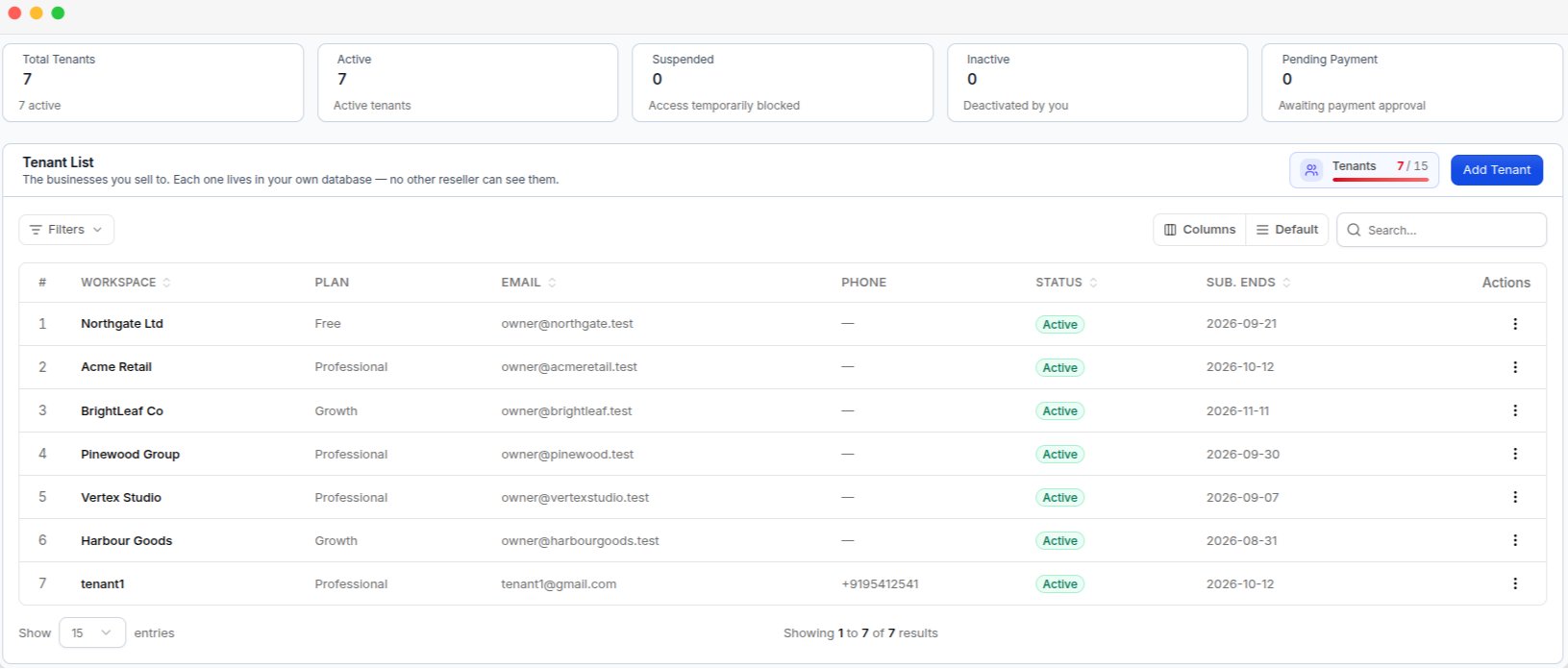
The **Tenant List** shows all tenant workspaces and their current status.
 ### Tenant summary
Five cards at the top show the number of tenants in each status:
| Card | What it shows |
| ------------------- | -------------------------------------------------------------- |
| **Total Tenants** | Total number of tenant workspaces. |
| **Active** | Tenants who can access the platform. |
| **Suspended** | Tenants whose access is temporarily blocked. |
| **Inactive** | Tenants whose access has been deactivated. |
| **Pending Payment** | Tenants waiting for an offline payment request to be approved. |
Next to **Add Tenant**, the **Tenants** counter shows how many tenant accounts are in use compared with the account limit, such as **5 / 6**.
### Tenant list
| Control | What it does |
| ---------------- | -------------------------------------------------- |
| **Filters** | Filter tenants by **Status** or **Plan**. |
| **Columns** | Choose which columns are shown. |
| **Default** | Restore the default columns. |
| **Search** | Search by company name, subdomain, or owner email. |
| **Show entries** | Choose how many tenants to show per page. |
| Column | What it shows |
| ------------- | -------------------------------------------- |
| **Workspace** | Tenant's workspace or business name. |
| **Plan** | Tenant's current plan. |
| **Email** | Workspace owner's email address. |
| **Phone** | Workspace owner's phone number. |
| **Status** | Tenant's current status. |
| **Sub. Ends** | End date of the current subscription period. |
| **Actions** | Available actions for the tenant. |
### Tenant actions
Open the **Actions** menu at the end of a tenant row.
| Action | What it does |
| --------------- | ------------------------------------------------------------------------------- |
| **View** | Opens the [tenant's detail page](#tenant-detail-page). |
| **Edit** | Changes the tenant's details or plan. |
| **Impersonate** | Opens the [tenant's workspace](#impersonating-a-tenant) as the workspace owner. |
| **Delete** | Opens the [tenant deletion dialog](#delete-a-tenant). |
## Tenant detail page
Click **View** to open the tenant's detail page.
### Tenant summary
Five cards at the top show the number of tenants in each status:
| Card | What it shows |
| ------------------- | -------------------------------------------------------------- |
| **Total Tenants** | Total number of tenant workspaces. |
| **Active** | Tenants who can access the platform. |
| **Suspended** | Tenants whose access is temporarily blocked. |
| **Inactive** | Tenants whose access has been deactivated. |
| **Pending Payment** | Tenants waiting for an offline payment request to be approved. |
Next to **Add Tenant**, the **Tenants** counter shows how many tenant accounts are in use compared with the account limit, such as **5 / 6**.
### Tenant list
| Control | What it does |
| ---------------- | -------------------------------------------------- |
| **Filters** | Filter tenants by **Status** or **Plan**. |
| **Columns** | Choose which columns are shown. |
| **Default** | Restore the default columns. |
| **Search** | Search by company name, subdomain, or owner email. |
| **Show entries** | Choose how many tenants to show per page. |
| Column | What it shows |
| ------------- | -------------------------------------------- |
| **Workspace** | Tenant's workspace or business name. |
| **Plan** | Tenant's current plan. |
| **Email** | Workspace owner's email address. |
| **Phone** | Workspace owner's phone number. |
| **Status** | Tenant's current status. |
| **Sub. Ends** | End date of the current subscription period. |
| **Actions** | Available actions for the tenant. |
### Tenant actions
Open the **Actions** menu at the end of a tenant row.
| Action | What it does |
| --------------- | ------------------------------------------------------------------------------- |
| **View** | Opens the [tenant's detail page](#tenant-detail-page). |
| **Edit** | Changes the tenant's details or plan. |
| **Impersonate** | Opens the [tenant's workspace](#impersonating-a-tenant) as the workspace owner. |
| **Delete** | Opens the [tenant deletion dialog](#delete-a-tenant). |
## Tenant detail page
Click **View** to open the tenant's detail page.
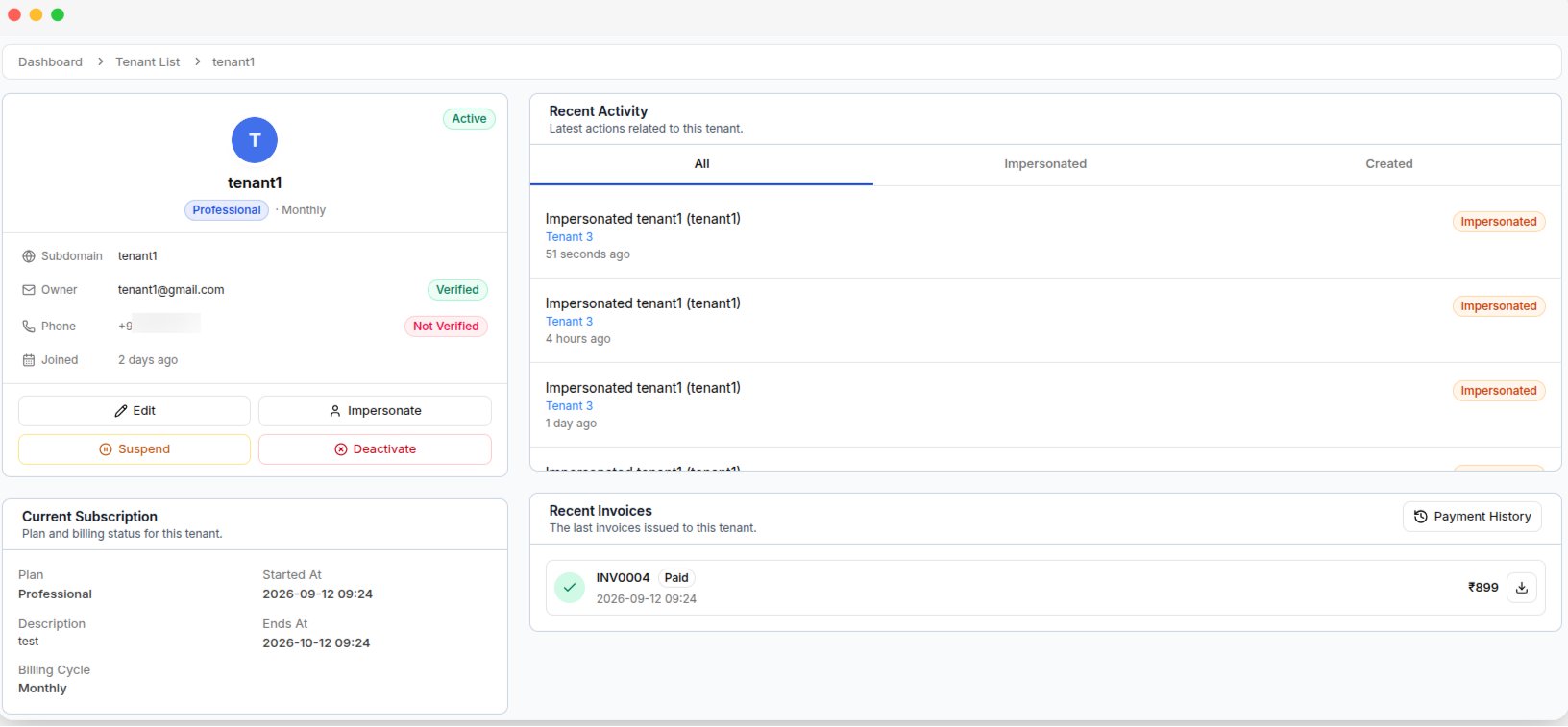 Shows the tenant's subdomain, owner email, phone number, join date, current plan, billing cycle, and account status. Email and phone numbers show **Verified** or **Not Verified**.
Available actions are **Edit**, **Impersonate**, **Suspend**, and **Deactivate**.
Shows the tenant's plan, plan description, billing cycle, and subscription start and end dates.
Shows the tenant's latest activity. Use **All**, **Impersonated**, or **Updated** to filter the activity list.
Shows the tenant's latest successful invoices, each with its status, date, amount, and download option. Select **Payment History** to view the full payment history, including failed payment attempts.
Change the tenant's plan from **Edit** on the detail page.
## Impersonating a tenant
Click **Impersonate** to open the tenant's workspace as the workspace owner. This is useful for checking the tenant's view or troubleshooting issues.
An amber banner shows **You are impersonating this tenant** while impersonation is active.
Shows the tenant's subdomain, owner email, phone number, join date, current plan, billing cycle, and account status. Email and phone numbers show **Verified** or **Not Verified**.
Available actions are **Edit**, **Impersonate**, **Suspend**, and **Deactivate**.
Shows the tenant's plan, plan description, billing cycle, and subscription start and end dates.
Shows the tenant's latest activity. Use **All**, **Impersonated**, or **Updated** to filter the activity list.
Shows the tenant's latest successful invoices, each with its status, date, amount, and download option. Select **Payment History** to view the full payment history, including failed payment attempts.
Change the tenant's plan from **Edit** on the detail page.
## Impersonating a tenant
Click **Impersonate** to open the tenant's workspace as the workspace owner. This is useful for checking the tenant's view or troubleshooting issues.
An amber banner shows **You are impersonating this tenant** while impersonation is active.
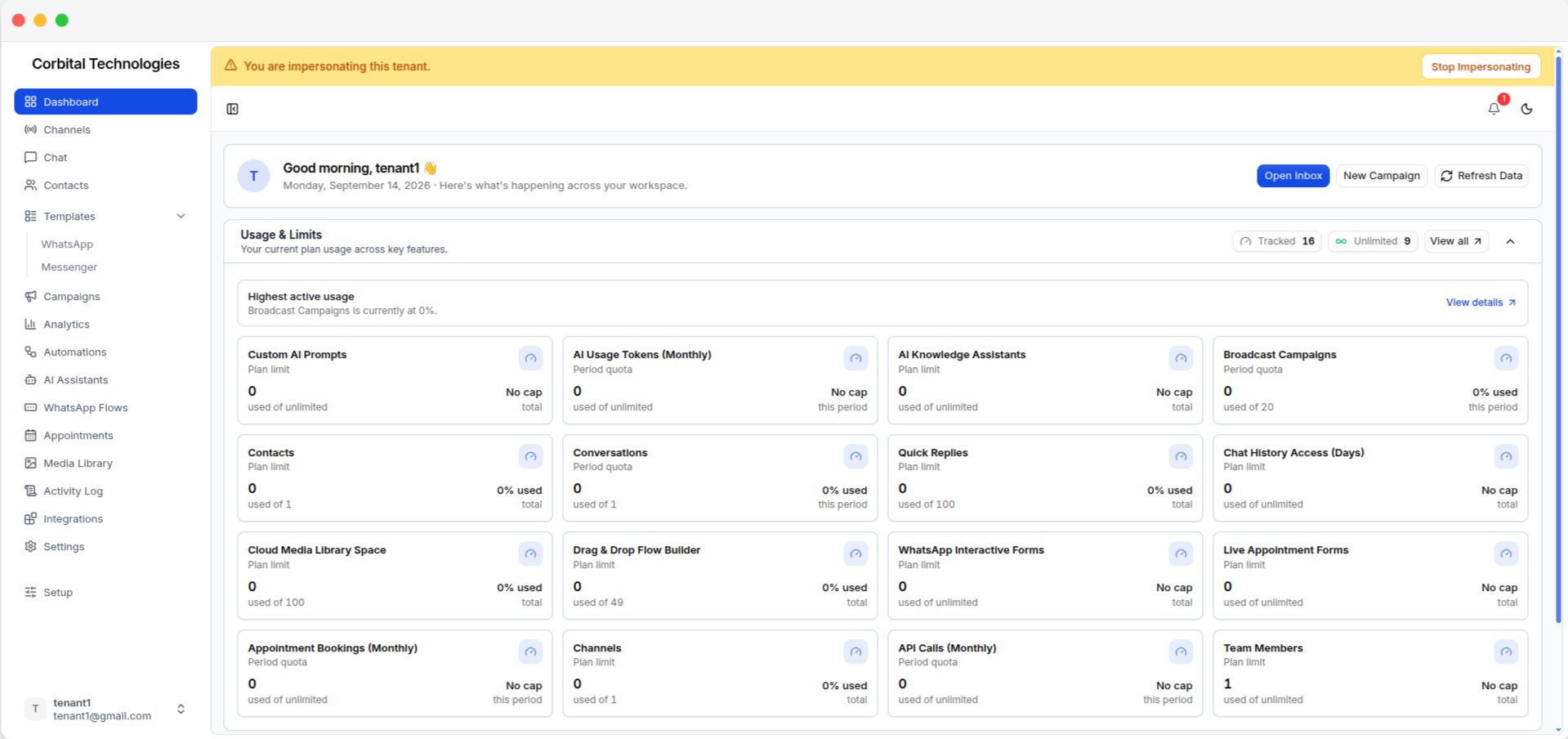 Select **Stop Impersonating** in the banner to return to the reseller account. The Tenant List opens automatically. No separate login is required.
## Suspend, deactivate, and reactivate
Change tenant access from the tenant's detail page.
| Action | What it does |
| -------------- | --------------------------------------------------------------------------------- |
| **Suspend** | Temporarily blocks tenant access. The tenant's plan and billing remain unchanged. |
| **Deactivate** | Blocks tenant access and changes the status to **Inactive**. |
| **Activate** | Restores access for a suspended or inactive tenant. The plan remains unchanged. |
Tenants with **Pending Payment** status cannot be suspended or deactivated. The offline payment request must be reviewed under **Offline Payments** before the tenant can be activated.
## Delete a tenant
Click **Delete** from the tenant's row to open the deletion dialog.
Deletion is permanent and cannot be undone. It removes the tenant's users, contacts, chat history, campaigns, connected channels, media, and billing history. Connected WhatsApp channels are also disconnected.
If the tenant has a subscription end date, these options are available:
| Option | What happens |
| ---------------------------------- | ----------------------------------------------------------------------------------------------------------------------------------------- |
| **Delete after subscription ends** | The tenant keeps full access until the current subscription ends. The tenant and all related data are deleted when the subscription ends. |
| **Instant delete** | Deletes the tenant and all related data immediately. |
If the tenant has no subscription end date, only **Instant delete** is available.
### Scheduled deletions
A scheduled deletion can be cancelled before the subscription ends. Select **Cancel scheduled deletion** from the tenant's row. While deletion is scheduled, the tenant keeps full access and no data is deleted.
The tenant receives email reminders **7 days and 1 day** before the subscription ends. **Instant delete** does not send a reminder, because the tenant is deleted immediately.
Select **Stop Impersonating** in the banner to return to the reseller account. The Tenant List opens automatically. No separate login is required.
## Suspend, deactivate, and reactivate
Change tenant access from the tenant's detail page.
| Action | What it does |
| -------------- | --------------------------------------------------------------------------------- |
| **Suspend** | Temporarily blocks tenant access. The tenant's plan and billing remain unchanged. |
| **Deactivate** | Blocks tenant access and changes the status to **Inactive**. |
| **Activate** | Restores access for a suspended or inactive tenant. The plan remains unchanged. |
Tenants with **Pending Payment** status cannot be suspended or deactivated. The offline payment request must be reviewed under **Offline Payments** before the tenant can be activated.
## Delete a tenant
Click **Delete** from the tenant's row to open the deletion dialog.
Deletion is permanent and cannot be undone. It removes the tenant's users, contacts, chat history, campaigns, connected channels, media, and billing history. Connected WhatsApp channels are also disconnected.
If the tenant has a subscription end date, these options are available:
| Option | What happens |
| ---------------------------------- | ----------------------------------------------------------------------------------------------------------------------------------------- |
| **Delete after subscription ends** | The tenant keeps full access until the current subscription ends. The tenant and all related data are deleted when the subscription ends. |
| **Instant delete** | Deletes the tenant and all related data immediately. |
If the tenant has no subscription end date, only **Instant delete** is available.
### Scheduled deletions
A scheduled deletion can be cancelled before the subscription ends. Select **Cancel scheduled deletion** from the tenant's row. While deletion is scheduled, the tenant keeps full access and no data is deleted.
The tenant receives email reminders **7 days and 1 day** before the subscription ends. **Instant delete** does not send a reminder, because the tenant is deleted immediately.