> ## Documentation Index
> Fetch the complete documentation index at: https://reseller-docs.wamatrix.io/llms.txt
> Use this file to discover all available pages before exploring further.
# Currency setup
> Set the one base currency your plans, invoices, and payments use.
Your **base currency** is the single currency your whole reseller business runs in. Every plan you price, every invoice you issue, every coupon you create, and every payment your tenants make uses this currency.
You can set only **one** base currency for your platform, and it is used for everyone. You cannot price a plan in two currencies, and the platform never converts an amount from one currency to another.
This matters because a price on its own is just a number. When you type `499` into a plan, the base currency is what decides whether that means 499 rupees or 499 dollars — and it is also what puts the right symbol (`₹499`) next to it everywhere your tenants see it.
This is separate from the currency you pay **WaMatrix** in for your own reseller plan. This setting only controls how you bill **your** tenants.
## Why the base currency matters
Setting the currency is not a cosmetic preference — it unlocks and defines the rest of the billing setup.
Plans cannot be created until a base currency exists. Every plan is automatically tagged with it.
A price of `499` is meaningless on its own. The base currency is what makes it ₹499 rather than \$499.
Your symbol is used on the storefront, the admin panel, invoices, PDFs, and billing emails.
Tax rates and fixed-amount coupons use the same currency as your plans.
### Where the currency appears
| Area | How the currency is used |
| -------------------------------------------- | --------------------------------------------------------------------- |
| [**Plans**](/pa/plans-and-pricing) | Every plan is priced in the base currency and tagged with it on save. |
| **Public plans page** | Prices are shown to visitors with your symbol. |
| [**Subscriptions**](/pa/subscriptions) | Recurring charges are raised in the base currency. |
| [**Invoices**](/pa/invoices-and-payments) | Invoice totals, line items, and generated PDFs use your symbol. |
| [**Offline payments**](/pa/offline-payments) | Submitted amounts and approval alerts are shown in the base currency. |
| [**Coupons**](/pa/coupons) | Fixed-amount discounts are deducted in the base currency. |
| [**Taxes**](/pa/billing-and-payouts#taxes) | Tax rates are tagged with the base currency. |
| **Billing emails** | Amounts in tenant-facing emails are formatted with your symbol. |
There is **no currency conversion**. A price of `499` is charged as 499 units of your base currency to every tenant, wherever they are. If you want to sell at different price points in different regions, that is a pricing decision you make per plan — not something the currency setting does for you.
## Before you choose
Pick the currency you actually **bank and settle in**, then check it against the rest of your setup.
Your tenants pay you through the [payment gateways](/pa/billing-and-payouts) you connect. Confirm your gateway and merchant account can settle in your chosen currency before you go live.
If a gateway cannot accept your currency, tenants will not be able to complete an online payment — you would be limited to [offline payments](/pa/offline-payments), which settle in whatever currency you bank in.
Because there is no conversion, your base currency is also your pricing currency for every market you sell into. Choose the currency most of your tenants will pay in.
You can change the code freely while you are still setting up. Once a tenant holds an active subscription, the code is locked. See [what you can and cannot change later](#what-you-can-and-cannot-change-later).
## Set the base currency
Go to **Setup → Currency** in the sidebar. The page shows a **Base Currency** card, plus a setup notice while no currency is configured.
 Go to **Currency** in the sidebar.
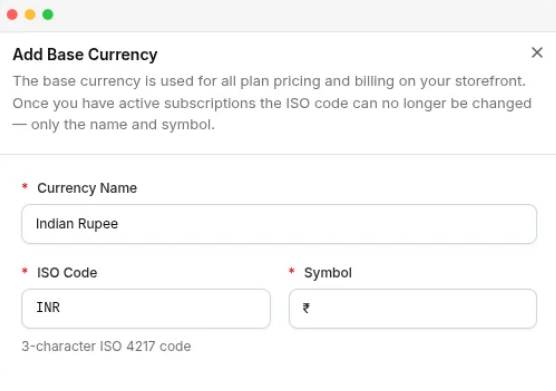
This opens the currency panel. The button is only shown while no base currency exists — one base currency per platform.
| Field | Required | Description |
| ----------------- | -------- | ---------------------------------------------------------------------------------------------- |
| **Currency Name** | Yes | The full name shown in the panel, for example `Indian Rupee`. Up to 100 characters. |
| **ISO Code** | Yes | The 3-character ISO 4217 code, for example `INR`. Typed manually and uppercased automatically. |
| **Symbol** | Yes | The symbol printed next to every amount, for example `₹`. Up to 10 characters. |
Click **Save**. The currency appears in the **Base Currency** card and the **Add Plan** button becomes available.
Enter the symbol exactly as you want it to appear on invoices and on your public plans page — for example `$`, `₹`, `€`, or a prefixed form like `A$`. This is the symbol tenants see.
## What you can and cannot change later
Once any tenant has an **active**, **past-due**, or **billing-only** subscription, the **ISO Code cannot be changed**. For example, **INR cannot be changed to USD**.
This is enforced, not just advised. Changing the code would quietly change what every saved plan price and coupon amount means — the numbers would stay the same, but a ₹4,999 plan would become a \$4,999 plan.
| Field | Before you have subscriptions | After a subscription is active |
| ----------------- | ----------------------------- | ------------------------------ |
| **Currency Name** | Editable | Editable |
| **Symbol** | Editable | Editable |
| **ISO Code** | Editable | **Locked** |
Cancelled and expired subscriptions do not lock the currency — nothing further will be charged on them.
With a base currency set, the **Add Plan** button is enabled and every plan you create is priced in it.
Go to **Currency** in the sidebar.
This opens the currency panel. The button is only shown while no base currency exists — one base currency per platform.
| Field | Required | Description |
| ----------------- | -------- | ---------------------------------------------------------------------------------------------- |
| **Currency Name** | Yes | The full name shown in the panel, for example `Indian Rupee`. Up to 100 characters. |
| **ISO Code** | Yes | The 3-character ISO 4217 code, for example `INR`. Typed manually and uppercased automatically. |
| **Symbol** | Yes | The symbol printed next to every amount, for example `₹`. Up to 10 characters. |
Click **Save**. The currency appears in the **Base Currency** card and the **Add Plan** button becomes available.
Enter the symbol exactly as you want it to appear on invoices and on your public plans page — for example `$`, `₹`, `€`, or a prefixed form like `A$`. This is the symbol tenants see.
## What you can and cannot change later
Once any tenant has an **active**, **past-due**, or **billing-only** subscription, the **ISO Code cannot be changed**. For example, **INR cannot be changed to USD**.
This is enforced, not just advised. Changing the code would quietly change what every saved plan price and coupon amount means — the numbers would stay the same, but a ₹4,999 plan would become a \$4,999 plan.
| Field | Before you have subscriptions | After a subscription is active |
| ----------------- | ----------------------------- | ------------------------------ |
| **Currency Name** | Editable | Editable |
| **Symbol** | Editable | Editable |
| **ISO Code** | Editable | **Locked** |
Cancelled and expired subscriptions do not lock the currency — nothing further will be charged on them.
With a base currency set, the **Add Plan** button is enabled and every plan you create is priced in it.