> ## Documentation Index
> Fetch the complete documentation index at: https://reseller-docs.wamatrix.io/llms.txt
> Use this file to discover all available pages before exploring further.
# Branding
> Configure the platform branding, email appearance, and sender identity.
Branding lets you configure the platform logo, colours, email appearance, sender identity, and legal links. These settings are optional and can be configured at any time.
Configure the platform name, general settings, logos, and favicon.
Configure the appearance of outgoing emails.
Configure the sender identity and SMTP connection.
Add your Privacy Policy and Terms & Conditions links.
SMTP must be configured before the platform can send tenant emails, including registration, welcome, and notification emails.
## System Core Settings
Go to **Settings → System** to configure the main platform settings and logos.
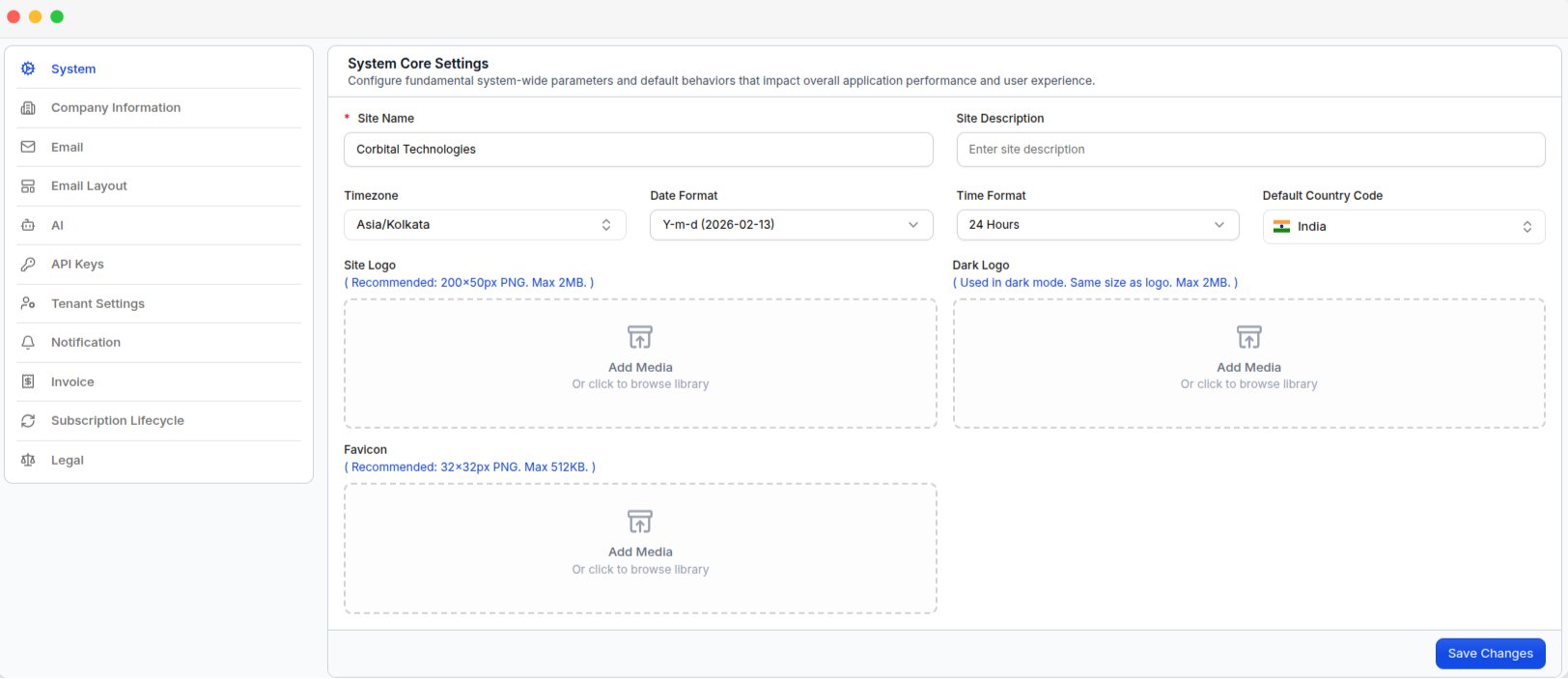 | Field | Description |
| ------------------------ | ----------------------------------------- |
| **Site Name** | Platform name shown throughout the panel. |
| **Site Description** | Short description of the platform. |
| **Timezone** | Default timezone for dates and times. |
| **Date Format** | Format used to display dates. |
| **Time Format** | Format used to display times. |
| **Default Country Code** | Country code used by default. |
| Field | Recommended size | Maximum |
| ------------- | ---------------- | ------- |
| **Site Logo** | 200 × 50 px | 2 MB |
| **Dark Logo** | 200 × 50 px | 2 MB |
| **Favicon** | 32 × 32 px | 512 KB |
Supported logo formats: **JPEG, PNG, and WebP**. **ICO** format is also supported for favicons.
You can select an existing file from the [**Media Library**](/pa/media-library) by clicking **Add Media**.
SVG files are not supported for the Site Logo, Dark Logo, or Favicon.
## Email Layout
Go to **Settings → Email Layout** to configure the appearance of outgoing emails.
| Field | Description |
| ------------------------ | ----------------------------------------- |
| **Site Name** | Platform name shown throughout the panel. |
| **Site Description** | Short description of the platform. |
| **Timezone** | Default timezone for dates and times. |
| **Date Format** | Format used to display dates. |
| **Time Format** | Format used to display times. |
| **Default Country Code** | Country code used by default. |
| Field | Recommended size | Maximum |
| ------------- | ---------------- | ------- |
| **Site Logo** | 200 × 50 px | 2 MB |
| **Dark Logo** | 200 × 50 px | 2 MB |
| **Favicon** | 32 × 32 px | 512 KB |
Supported logo formats: **JPEG, PNG, and WebP**. **ICO** format is also supported for favicons.
You can select an existing file from the [**Media Library**](/pa/media-library) by clicking **Add Media**.
SVG files are not supported for the Site Logo, Dark Logo, or Favicon.
## Email Layout
Go to **Settings → Email Layout** to configure the appearance of outgoing emails.
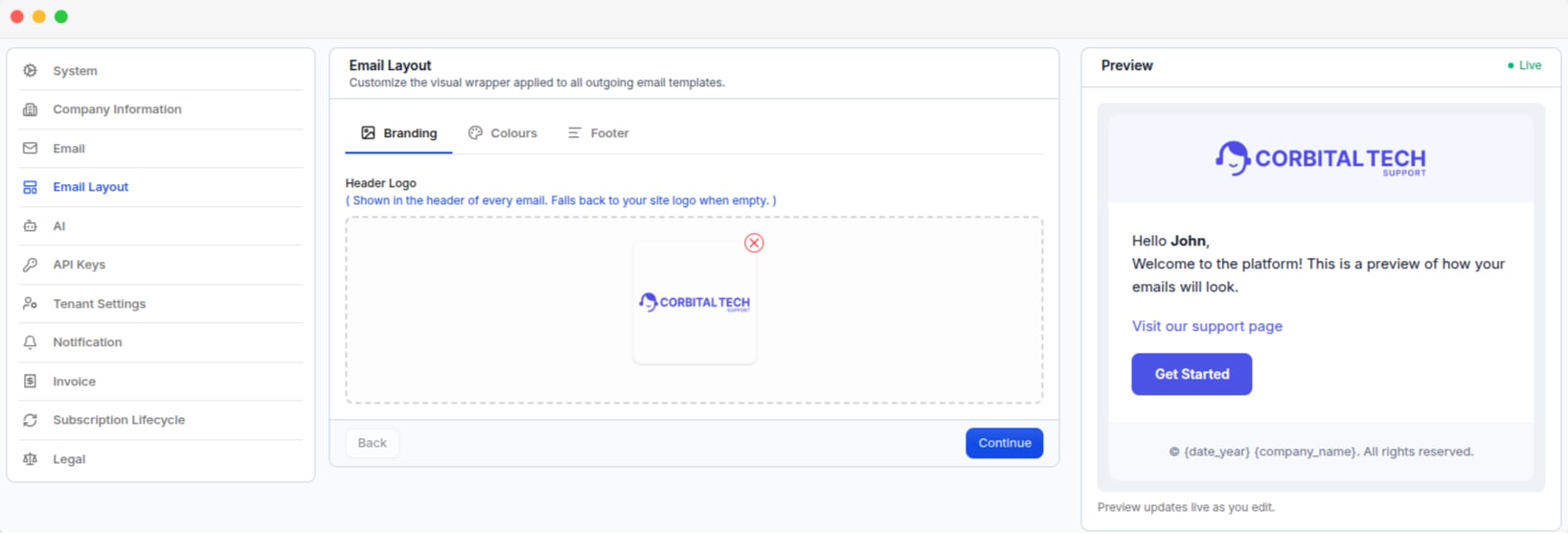 Configure the logo shown in the email header. If no header logo is configured, the default **Site Name** will be used.
Configure the header, content, footer, button, and link colours. Select a colour from the colour picker or enter a hex value.
Configure the text shown at the bottom of every email. You can use the `{date_year}` and `{company_name}` placeholders.
Click **Save Changes** on the final tab to save the Email Layout settings.
## Sender Identity (SMTP)
Go to **Settings → Email** to configure the email settings and enable email sending.
Configure the logo shown in the email header. If no header logo is configured, the default **Site Name** will be used.
Configure the header, content, footer, button, and link colours. Select a colour from the colour picker or enter a hex value.
Configure the text shown at the bottom of every email. You can use the `{date_year}` and `{company_name}` placeholders.
Click **Save Changes** on the final tab to save the Email Layout settings.
## Sender Identity (SMTP)
Go to **Settings → Email** to configure the email settings and enable email sending.
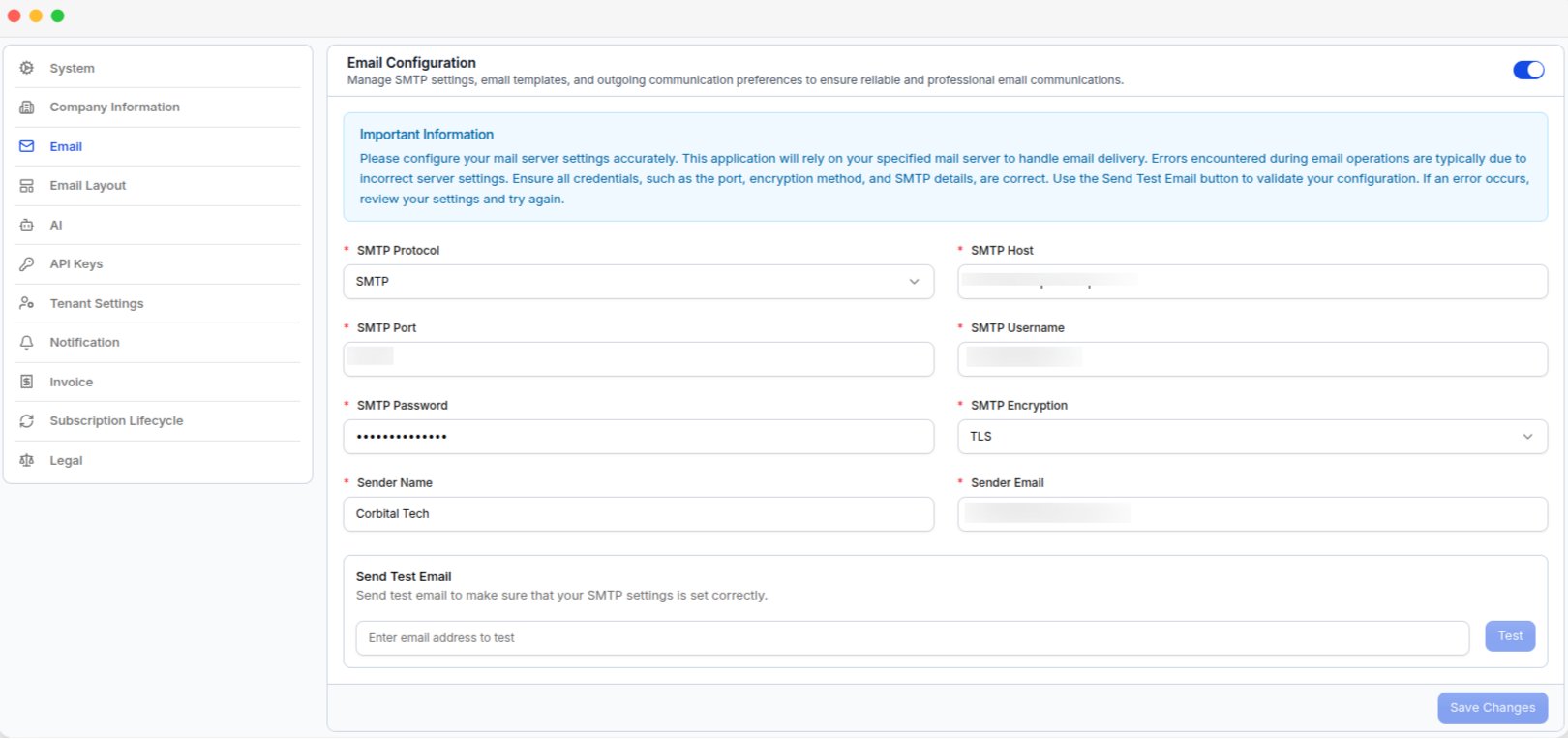 Enter the **SMTP Host**, **Port**, **Username**, **Password**, and **Encryption**.
Configure the **Sender Name** and **Sender Email** shown to tenants.
Click **Test** to check that the SMTP settings are working.
Email delivery is disabled until a valid SMTP connection is configured.
## Legal
Go to **Settings → Legal** to add the **Privacy Policy** and **Terms & Conditions** links shown during tenant registration.
Enter the **SMTP Host**, **Port**, **Username**, **Password**, and **Encryption**.
Configure the **Sender Name** and **Sender Email** shown to tenants.
Click **Test** to check that the SMTP settings are working.
Email delivery is disabled until a valid SMTP connection is configured.
## Legal
Go to **Settings → Legal** to add the **Privacy Policy** and **Terms & Conditions** links shown during tenant registration.
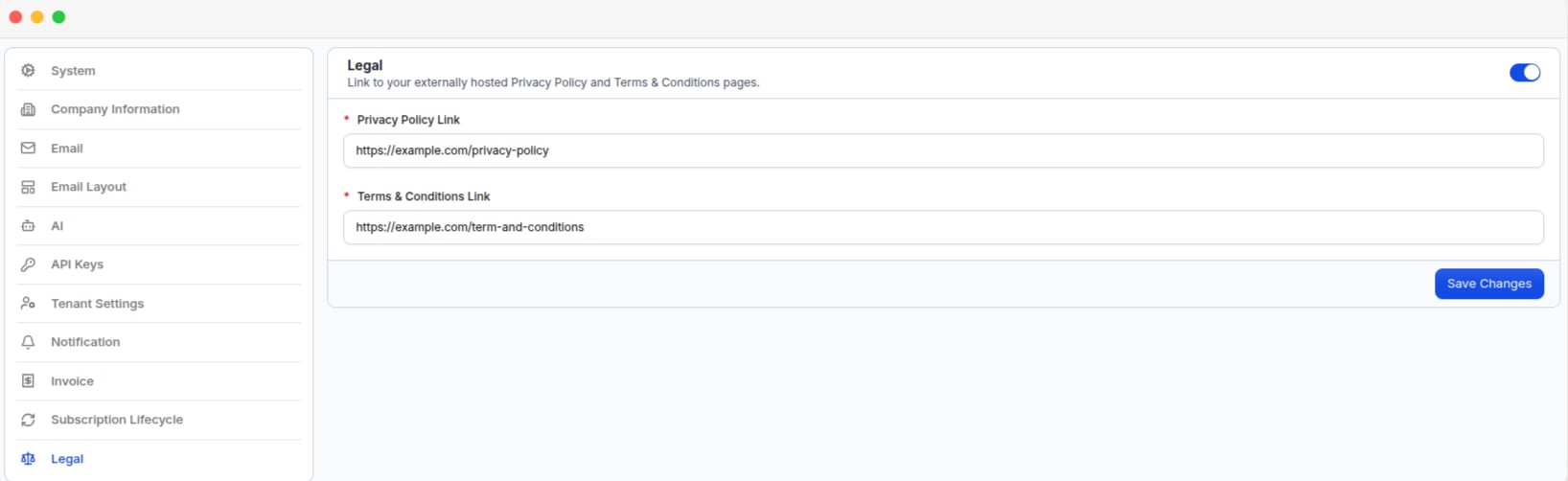 Turn on the switch at the top of the card, then enter:
* **Privacy Policy Link** — Full URL, including `https://`.
* **Terms & Conditions Link** — Full URL, including `https://`.
Both links are required when the setting is enabled. Click **Save Changes** to save.
### Where the links appear
The links are shown on the tenant sign-up page next to the agreement checkbox.
The checkbox says *"I agree to the Terms of Service and Privacy Policy."*
Turn on the switch at the top of the card, then enter:
* **Privacy Policy Link** — Full URL, including `https://`.
* **Terms & Conditions Link** — Full URL, including `https://`.
Both links are required when the setting is enabled. Click **Save Changes** to save.
### Where the links appear
The links are shown on the tenant sign-up page next to the agreement checkbox.
The checkbox says *"I agree to the Terms of Service and Privacy Policy."*
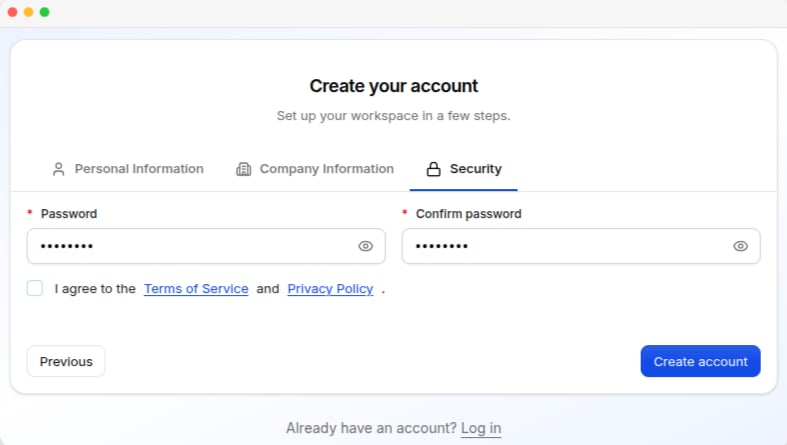 Tenants must accept the checkbox to complete registration.